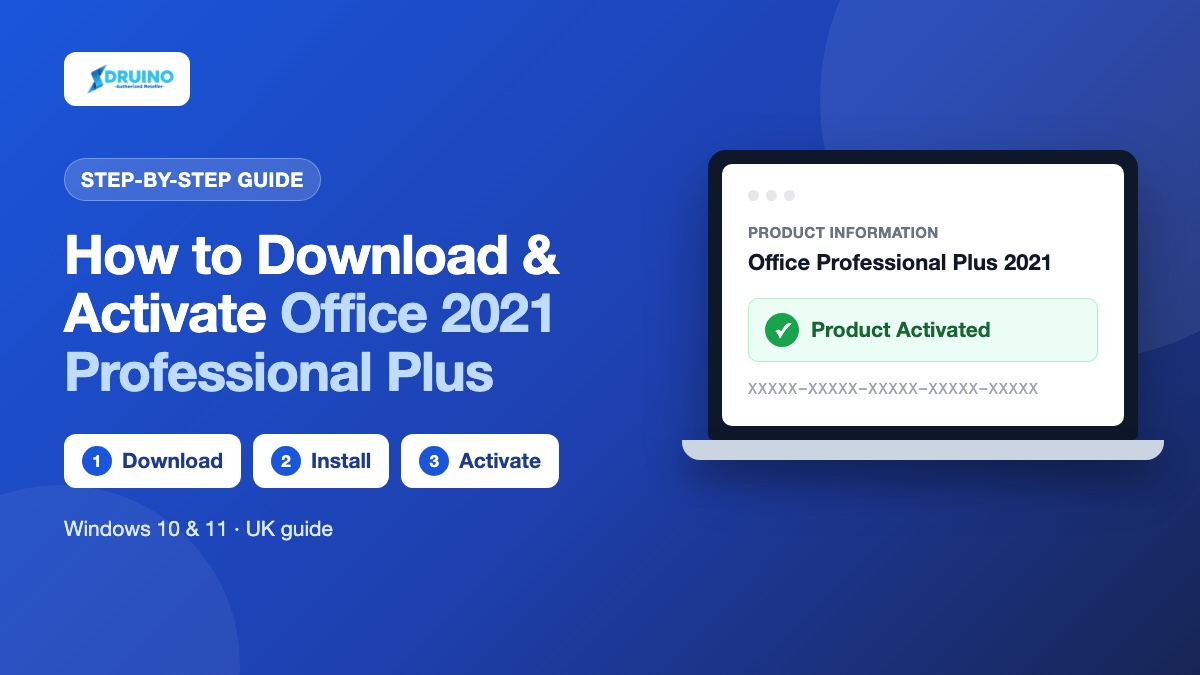
Quick answer: To download and install Office 2021 Professional Plus, open the download link in your Druino order email, run the setup file and wait for it to finish. Then open Word, enter your 25-character product key (or go to File › Account) and check that it says Product Activated. You need Windows 10 or 11, 4 GB of RAM and 4 GB of free disk space. Note: Microsoft ended support for Office 2021 on 13 October 2026, so it no longer receives security updates.
This UK guide covers what is included in Office 2021 Professional Plus, system requirements, how to download, install and activate it, how to fix common errors, and what the end of Microsoft support means for you.
Office 2021 Professional Plus at a glance
| Question | Answer |
|---|---|
| Product | Microsoft Office 2021 Professional Plus for Windows |
| Included apps | Word, Excel, PowerPoint, Outlook, OneNote, Access and Publisher |
| Licence | One-time payment, 1 PC, no subscription |
| Works on | Windows 11 and Windows 10 (not Mac) |
| Microsoft support | Ended on 13 October 2026 |
| Where to get help | Druino support |
What is included in Office 2021 Professional Plus?
| Application | What you can do |
|---|---|
| Word 2021 | Write and format letters, reports and other documents. |
| Excel 2021 | Build spreadsheets with XLOOKUP, dynamic arrays and charts. |
| PowerPoint 2021 | Design slides and record presentations. |
| Outlook 2021 | Manage email, calendars and contacts. |
| OneNote 2021 | Organise notes, projects and research. |
| Access 2021 | Create and manage desktop databases. |
| Publisher 2021 | Design flyers and leaflets. Microsoft retired Publisher in October 2026. |
Not included: Microsoft Project and Visio are separate products, and Copilot needs a Microsoft 365 subscription.
Office 2021 Professional Plus system requirements
| Component | Minimum |
|---|---|
| Operating system | Windows 11 or Windows 10 |
| Processor | 1.6 GHz or faster, 2-core |
| RAM | 4 GB (64-bit), 2 GB (32-bit) |
| Storage | 4 GB available disk space |
| Display | 1280 × 768 or higher |
| Graphics | DirectX 9 or later, WDDM 2.0 or higher |
| Internet | Needed to download, install and activate |
Windows 10 notice: general Windows 10 support ended on 14 October 2025. For a new installation, use Windows 11 wherever possible.
Before you start: prepare your PC
- Find your Druino order email with your product key and download link.
- Back up important documents, templates and Outlook data.
- Check which Office versions are installed in Settings › Apps › Installed apps.
- Uninstall any other version of Office (for example Office 2016, 2019 or a Microsoft 365 trial). Two versions of Office on one PC are the most common cause of installation and activation errors.
- Close all Office apps and restart your PC.
Step 1: Download Office 2021 Professional Plus
- Open your Druino order email and find your product key and download link.
- Check the product name says Office 2021 Professional Plus, not Home & Business or Microsoft 365.
- Click the download link and save the setup file (.exe or ISO) to your PC.
- If you received an ISO file, double-click it to open it, then double-click Setup.
If anything is unclear, email support@druino.co.uk before running a file. Never use modified installers or “cracked” downloads.
Step 2: Install Office 2021
- Double-click the setup file and click Yes if Windows asks for permission.
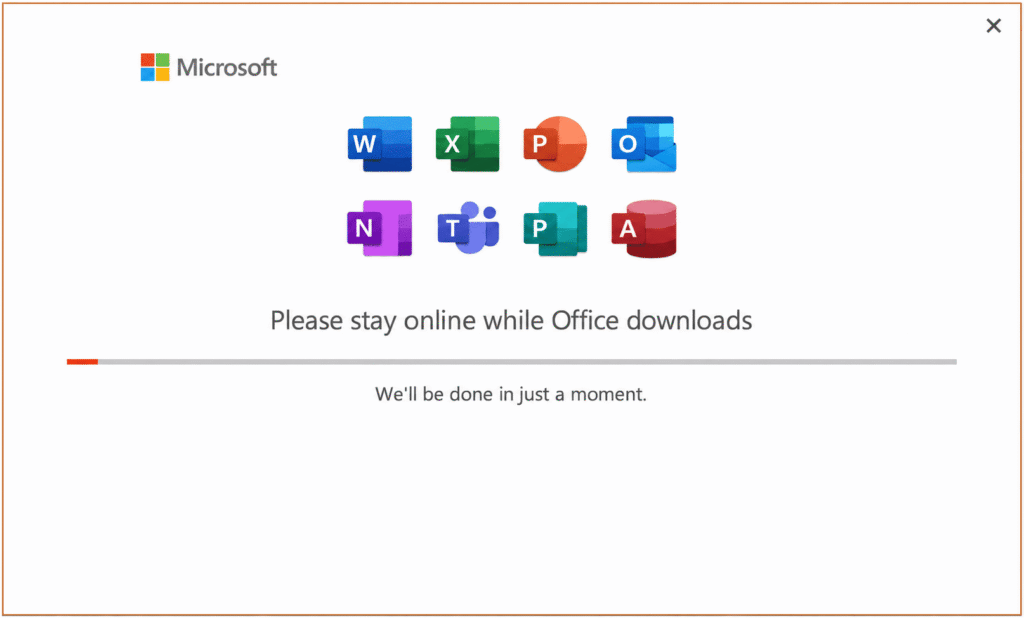
- Wait while Office downloads and installs. This usually takes 5 to 15 minutes, depending on your internet connection.
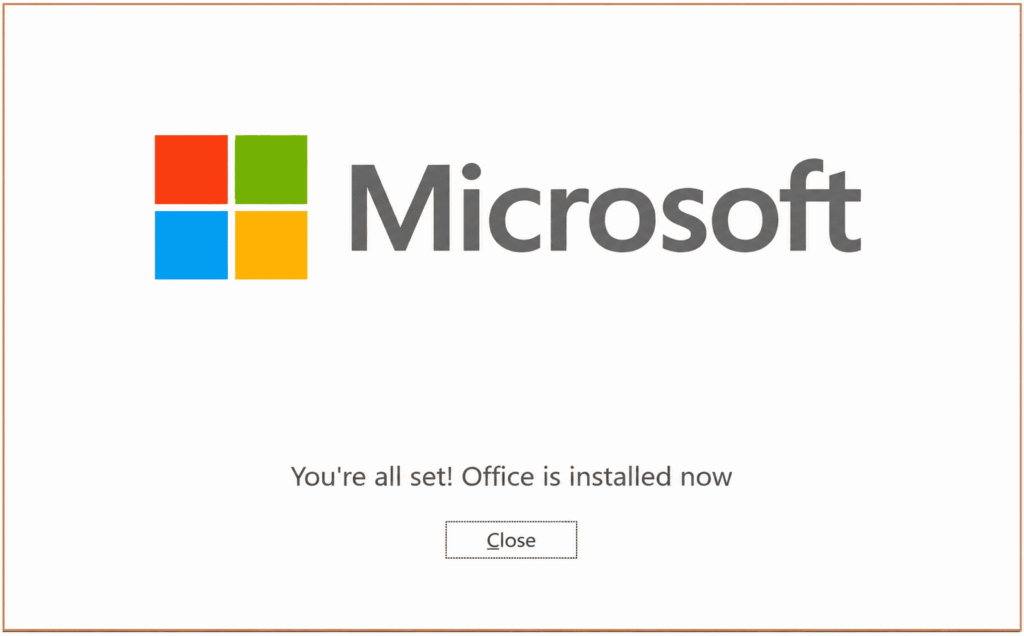
- When you see You’re all set! Office is installed now, click Close.
Step 3: Activate Office 2021 Professional Plus
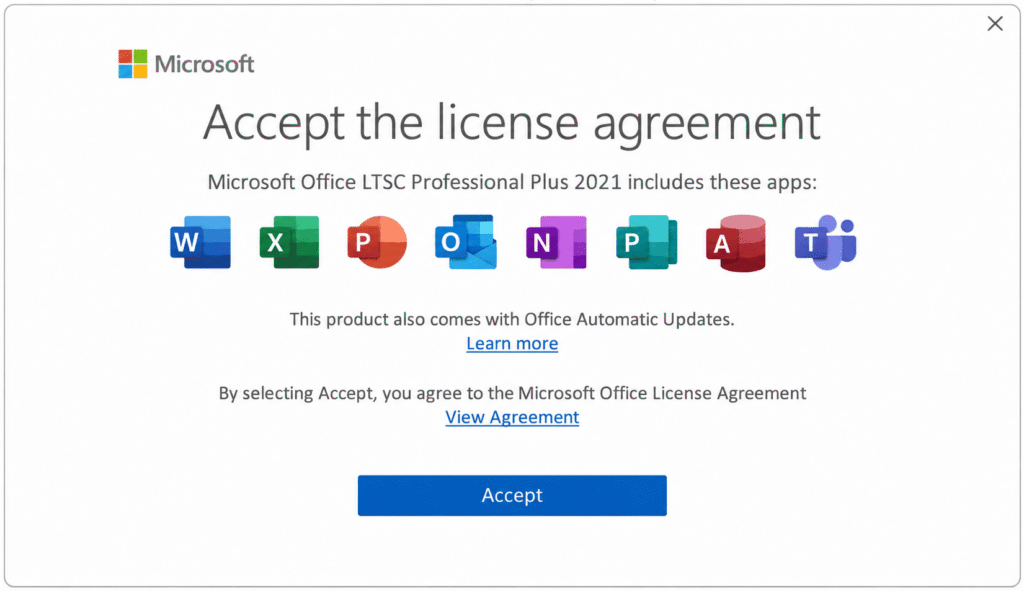
- Open Word from the Start menu.
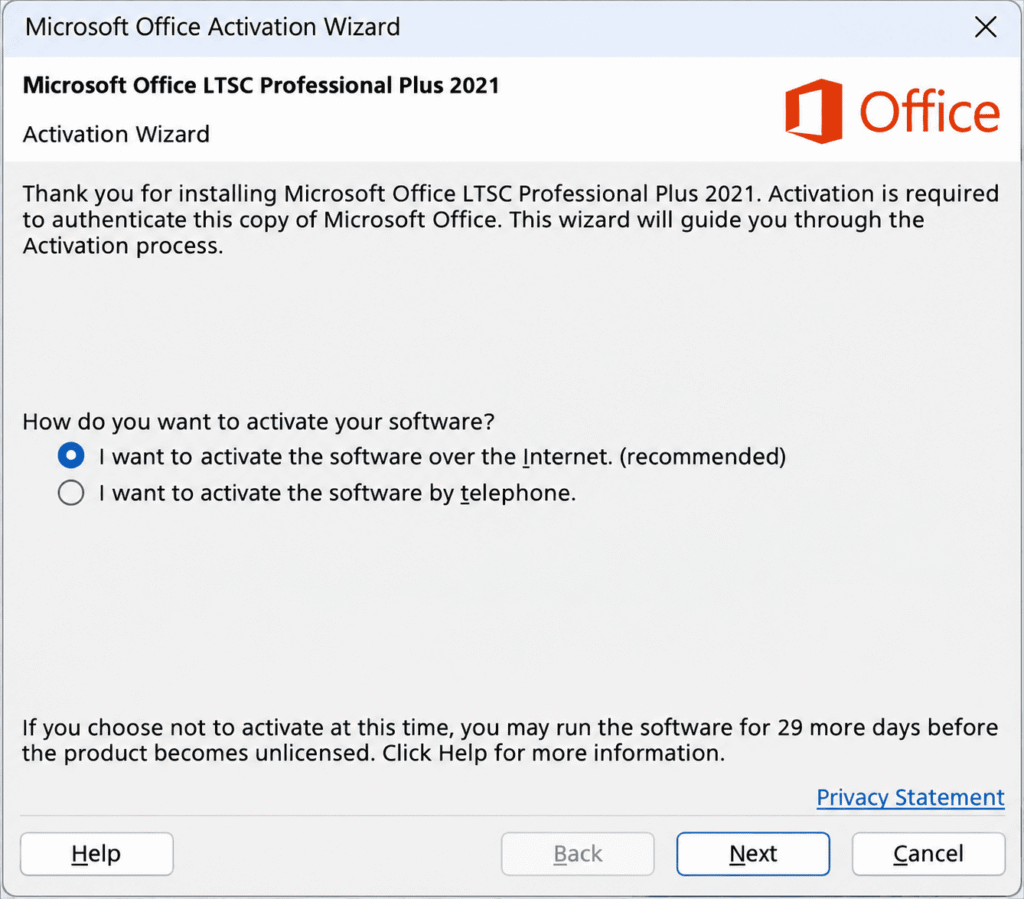
- If an activation window appears, enter your 25-character product key and click Activate.
- If no window appears, go to File › Account › Change Product Key (or Activate Product).
- Wait a few seconds while Office connects to Microsoft, then close and reopen Word.
If activation fails, don’t try unofficial activators: they can contain malware. Contact Druino support with your order number and the exact error message.
Step 4: Check that Office is activated
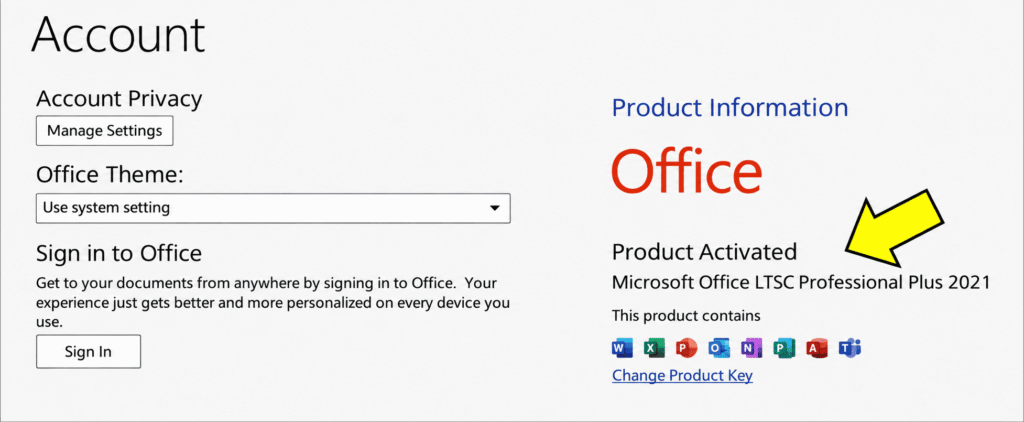
- Open Word and go to File › Account.
- Under Product Information you should see Product Activated and Microsoft Office Professional Plus 2021.
- Open Excel and PowerPoint to check they start normally.
How to fix common Office 2021 installation and activation errors
| Problem | What to do |
|---|---|
| “This product key can’t be used” | Check you installed Office 2021 Professional Plus (not another edition) and that older Office versions are uninstalled. |
| Installer says another Office version is installed | Uninstall all other Office versions, restart your PC and run setup again. |
| No activation window appears | Go to File › Account › Change Product Key. |
| Activation fails online | Check your internet connection and the date and time on your PC, turn off any VPN, restart and try again. |
| Office says “Unlicensed Product” | Open File › Account, check the edition shown, then contact Druino support with your order number. |
| Lost your product key | Search your inbox and spam folder for your Druino order email, or contact us with your order number. |
More fixes: Office won’t install? Fix common setup errors on Windows.
Office 2021 end of support: what it means
Microsoft ended support for Office 2021 on 13 October 2026. Office 2021 still installs, activates and works, but it no longer receives security updates or bug fixes. That matters most for Outlook and for files you receive from other people. For a PC you will use for years, Office 2024 Professional Plus is supported until October 2029. Read more in Office 2021 end of support: does it still work?
| Feature | Office 2021 Professional Plus | Office 2024 Professional Plus |
|---|---|---|
| Payment | One-time | One-time |
| Security updates | Ended October 2026 | Until October 2029 |
| Publisher | Included (retired by Microsoft) | Not included |
| Newer Excel functions (TEXTSPLIT, VSTACK, IMAGE) | No | Yes |
| Best for | Lowest price, existing Office 2021 users | Long-term use |
Full comparison: Office 2024 vs 2021: which to buy?
Frequently asked questions
Where can I safely download Office 2021 Professional Plus?
Use the download link in your Druino order email. Avoid cracked installers and third-party activation tools, which can contain malware.
Does Office 2021 still work after the end of support?
Yes. Office 2021 still installs, activates and works after 13 October 2026, but it no longer receives security updates or bug fixes from Microsoft.
Can I install Office 2021 Professional Plus on a Mac?
No. Office 2021 Professional Plus is for Windows only. For a Mac, choose Office 2021 Home & Business for Mac.
Do I need to remove another version of Office first?
Yes. Uninstall Office 2016, 2019, Microsoft 365 or any other Office version first, then restart your PC. Your documents are not deleted when you uninstall Office.
How do I check that Office 2021 is activated?
Open Word and go to File › Account. Under Product Information you should see Product Activated and Microsoft Office Professional Plus 2021.
Can I use Office 2021 offline?
Yes. After installation and activation, Word, Excel, PowerPoint and the other desktop apps work offline. You need the internet to download, install and activate.
Can I move Office 2021 to a new PC?
Yes, one licence covers one PC at a time. Uninstall it from the old PC first, then install it on the new one. If activation fails, contact Druino support.
Is Publisher still included in Office 2021?
Yes, Publisher 2021 is included and still works, but Microsoft retired Publisher in October 2026, so it no longer gets updates.
Need help with your Druino Office 2021 order?
If the installer or activation doesn’t work as described, our UK support team can help. Never publish a product key or order details in a public comment.
Support: support@druino.co.uk · Contact Druino
Explore: Office 2021 Professional Plus · Office 2024 Professional Plus · Office 2024 download guide