To fix Office 2024 installation errors on Windows, first identify the exact error message, restart your PC after other installations have finished, and confirm that your installer matches your Office edition. Then check available storage, internet access and existing Office installations, especially 32-bit and 64-bit conflicts. If Office opens but displays an activation warning, troubleshoot activation separately.
By Druino · Content revised: 14 November 2026
An installation that will not start needs different checks from a stalled download or an installed application that will not open. This guide helps you identify the problem and choose the appropriate next step, including guidance for Office LTSC Professional Plus 2024.
Table of Contents
Identify Your Office 2024 Installation Problem
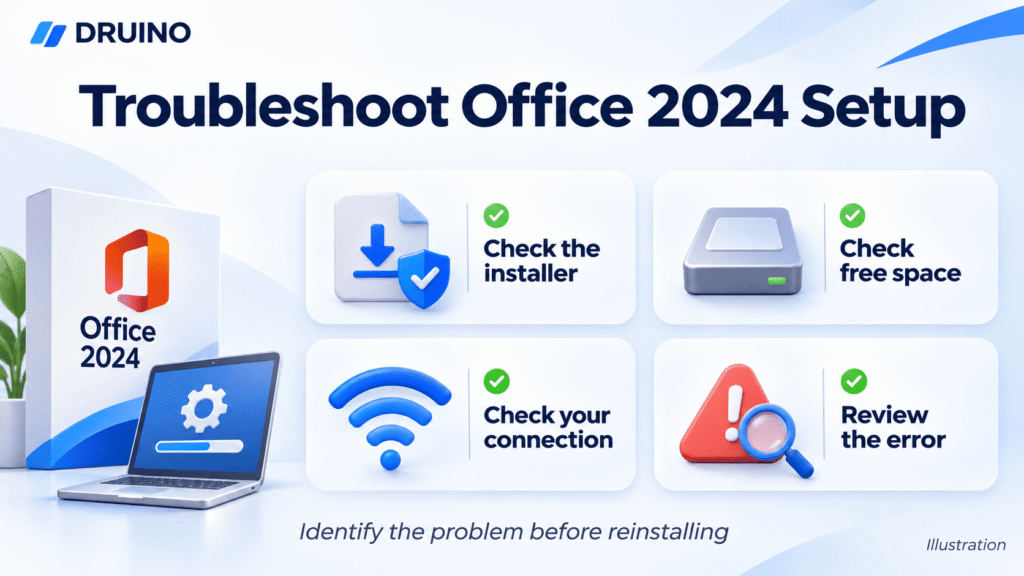
Before changing your setup, record the full error message and the stage at which it appears.
| What you see | What to investigate first |
|---|---|
| The installer will not open | Download source, file completeness and installation permissions |
| “Another installation is in progress” | An installation, update or removal already running |
| A 32-bit or 64-bit installation warning | Architecture conflicts with existing Office, Project or Visio |
| Setup appears stuck | Download activity, connectivity and other installation processes |
| A warning about an existing Office version | Incompatible products or installation technology |
| Setup finishes, but Word will not open | Repairing the installed Office suite |
| Word opens but shows “Unlicensed Product” | Activation rather than setup |
If you are installing Office for the first time, start with our Office 2024 Professional Plus installation and activation guide.
1. Check Your Windows Version and Installation Source
Confirm which Office edition you purchased before downloading another installer.
Office Home 2024, Office Home & Business 2024, Office LTSC Professional Plus 2024 and Microsoft 365 are different products. Follow the installation route appropriate to your edition.
For a retail purchase associated with your Microsoft account, use Microsoft’s account-based download instructions. For an organisation-managed installation, use the package or deployment method approved by your administrator.
If you purchased Office 2024 Professional Plus for Windows from Druino, compare the product name with your order instructions.
Before running setup:
- Check your Windows version under Settings → System → About.
- Compare your system with Microsoft’s requirements for your exact Office edition.
- Check free space on your system drive.
- Make sure you have permission to install software.
- Replace an incomplete download using the verified source.
For Office LTSC 2024, Microsoft lists supported Windows configurations in its Office LTSC 2024 overview. Installation and ongoing operating-system support are separate considerations.
2. Fix “Another Installation Is in Progress”
This message can appear when an Office installation, update or removal is already running. Microsoft associates it with errors including 0-1018.
- Check the Windows notification area for an Office installation icon.
- If setup is still progressing, let it finish.
- Avoid launching additional copies of the installer.
- If the earlier process has finished but the error remains, save your work and restart Windows.
- Try the correct installer again.
Microsoft documents these steps in its guidance for another installation being in progress.
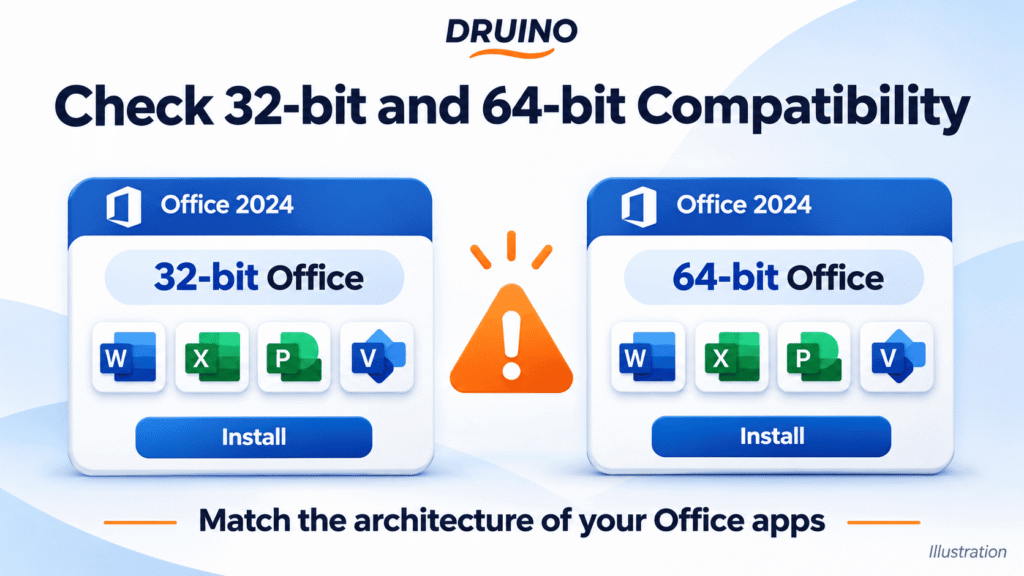
3. Resolve 32-Bit and 64-Bit Conflicts
A 64-bit Windows computer can have 32-bit Office installed. Your Windows architecture alone does not tell you which Office architecture is present.
Office setup can fail if you try to mix 32-bit and 64-bit Office products. An existing standalone installation of Project or Visio can also cause this conflict.
If an existing Office application opens:
- Open Word or Excel.
- Select File → Account.
- Select About Word or About Excel.
- Check whether the installation is 32-bit or 64-bit.
Then choose a compatible architecture for the products you need. If you intend to switch architectures, remove the conflicting Office products before installing the replacement versions.
Check compatibility with older add-ins and business applications before switching. Microsoft explains this issue in its 32-bit and 64-bit installation error guide.
4. Remove Conflicting Office Installations When Necessary
Review your existing Office software before uninstalling anything.
For a typical desktop installation:
- Open Control Panel.
- Select Programs → Programs and Features.
- Find the Office suite or standalone application identified by the error.
- Confirm you have the information needed to reinstall anything you still require.
- Select Uninstall if removal is necessary.
- Restart Windows before retrying setup.
Back up important Outlook data, templates and customisations first.
Office 2024 removal note: Microsoft currently states that its uninstall troubleshooter cannot uninstall Office 2024. Do not assume that a tool recommended for Microsoft 365 or Office 2021 supports Office 2024.
Follow Microsoft’s Office uninstall instructions for your installation type.
5. Troubleshoot an Office Installation That Appears Stuck
A progress indicator that remains unchanged does not always mean installation has failed. Setup may still be downloading or processing files.
Start with these checks:
- Keep the computer powered on and connected to a stable network.
- Check whether another installation or update is running.
- Confirm there is available storage on the system drive.
- Look for a hidden setup window requesting input.
- Record any error message before closing setup.
There is no single installation time that applies to every PC. Download speed, hardware and the installation method affect how long setup takes.
If setup fails, restart the computer and retry from the verified source. For recurring download problems, investigate the supported offline installation option for your edition. Microsoft’s Office installation troubleshooting guide covers slow installations and related checks.
6. Check the Deployment Configuration for Office LTSC 2024
Office LTSC Professional Plus 2024 uses an organisational deployment process. Microsoft documents the Office Deployment Tool, together with a configuration file.
If an LTSC deployment fails, ask your administrator to verify:
- The Office product selected in the configuration.
- The 32-bit or 64-bit architecture.
- The update channel and requested languages.
- The download source or local installation-file location.
- Whether existing Office products need removal.
Office LTSC 2024 can be installed from files downloaded in advance. However, installing from local files does not remove the need for the appropriate licence and activation method.
Use Microsoft’s Office LTSC 2024 deployment guide rather than applying an unrelated configuration file.
7. Repair Office If Installation Finished but Apps Will Not Open
If setup completed but Word or Excel does not start correctly, repairing the installed suite may be more appropriate than repeating setup.
For a typical Click-to-Run installation:
- Save your work and close Office applications.
- Open Settings → Apps → Installed apps.
- Locate your Microsoft Office suite.
- Open its options menu and select Modify, if available.
- Try Quick Repair.
- If the problem remains, use Online Repair with an internet connection.
Available options depend on the installation type. Repair can affect the entire suite, even when only one application is experiencing problems.
See Microsoft’s Office repair instructions for the procedure matching your installation.
8. Check Activation After Installation
If Word opens but displays Activation Required or Unlicensed Product, Office may already be installed successfully.
Open Word → File → Account and review:
- The installed Office edition.
- The activation message.
- Any account or licence prompt.
Follow our guide to checking Office 2024 activation status before reinstalling.
For Office LTSC, activation may use an organisation’s MAK or KMS arrangements. A retail Microsoft account redemption process is not appropriate for every installation.
Get Help With Your Druino Office Installation
If installation continues to fail, contact Druino support or email support@druino.co.uk.
Include:
- Your order number and purchase email.
- The exact Office product purchased.
- Your Windows version.
- The full error message or code.
- The stage at which installation stops.
- Any existing Office, Project or Visio installations.
- The troubleshooting steps you have already tried.
Attach a screenshot where useful, with product keys and personal account information hidden.
You can also consult our Office troubleshooting page.
Why won’t Office 2024 install on my PC?
Possible causes include conflicting Office installations, mixed 32-bit and 64-bit products, an incomplete download, insufficient storage or installation permissions. Identify the exact error before choosing a fix.
Should I uninstall an older Office version first?
Check the requirements of your new edition and any conflict reported by setup. Office LTSC deployment may require removal of existing versions. Confirm your backup and reinstall options before removing software you still use.
Can 32-bit and 64-bit Office products be installed together?
You cannot mix 32-bit and 64-bit Office desktop products in the same installation. Check standalone Project and Visio as well as your main Office suite when investigating an architecture conflict.
Can I install Office LTSC 2024 without internet access?
Yes, Office LTSC 2024 can be installed from previously downloaded installation files. Activation is a separate step, and its connectivity requirements depend on the licensing method.
Will uninstalling Office delete my documents?
Uninstalling Office does not normally remove documents, spreadsheets or presentations you created. Back up important files, Outlook data and customisations before making changes.
Does “Unlicensed Product” mean installation failed?
No. Office can be installed but not activated. Open File → Account to check the edition and activation state before repeating installation.
Sources
This guide references the following official Microsoft documentation:
- Troubleshoot installing Office — General installation problems and slow setup.
- Office 64-bit or 32-bit couldn’t be installed — Architecture conflicts.
- Another installation is in progress — Concurrent installation errors.
- Uninstall Microsoft 365 or Office from a PC — Removal methods and tool limitations.
- Deploy Office LTSC 2024 — Deployment configuration and local installation files.
- Repair an Office application — Repairing an installed Office suite.