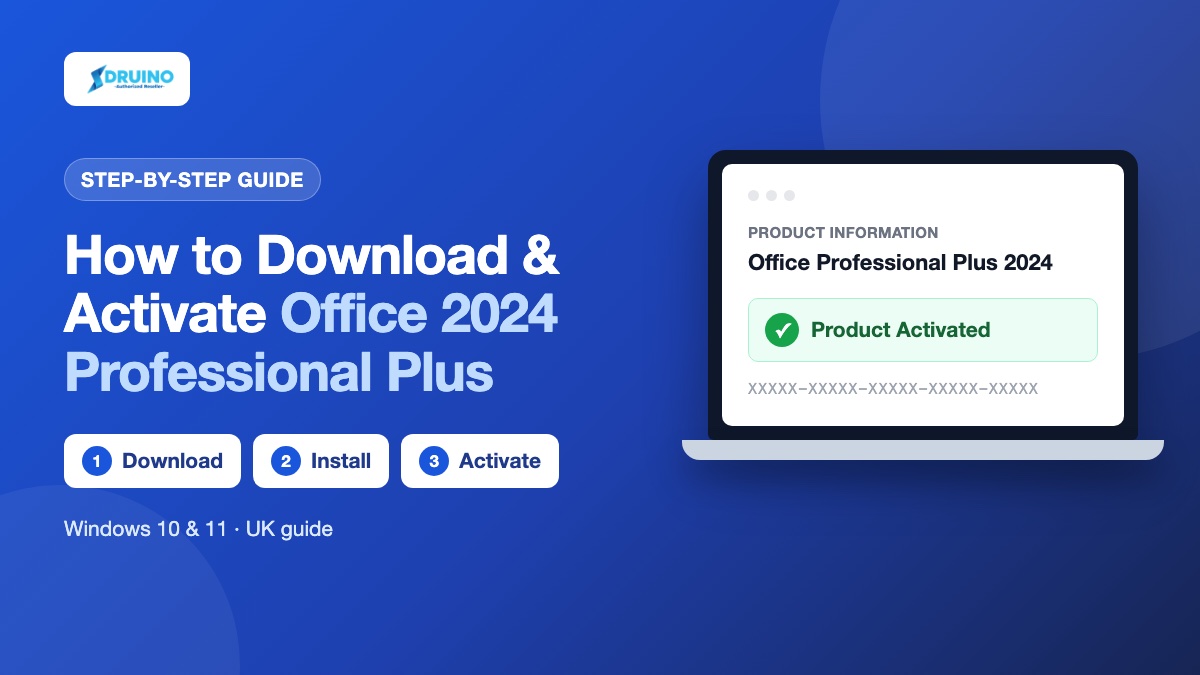
Quick answer: To download, install and activate Microsoft Office 2024 Professional Plus, first confirm your Windows PC meets the requirements, then use the installation method and licence details provided with your Druino purchase. Install the correct edition, open Word and check File → Account to complete or verify activation. The exact setup and activation process depends on whether your organisation uses a MAK key, KMS or another authorised deployment method.
This UK-focused guide covers what is included in Office 2024 Professional Plus, system requirements, safe download options, installation, activation, common errors and frequently asked questions. It also explains how Office LTSC Professional Plus 2024 differs from retail Office 2024 and Microsoft 365.
Office 2024 Professional Plus at a glance
| Question | Answer |
|---|---|
| Product | Microsoft Office LTSC Professional Plus 2024 for Windows |
| Included apps | Word, Excel, PowerPoint, Outlook, OneNote and Access |
| Licence model | Perpetual volume-licensed edition; rights depend on your agreement |
| Recommended system | A supported Windows 11 computer |
| Microsoft support | Ends in October 2029 |
| Where to get help | Druino support |
What is included in Office 2024 Professional Plus?
Office LTSC Professional Plus 2024 is the on-premises, volume-licensed Office edition aimed at organisations that need stable desktop applications without continual feature updates. It is distinct from Microsoft 365, which is subscription-based, and from consumer retail editions of Office 2024.
| Application | What you can do |
|---|---|
| Word 2024 | Create, review and format letters, reports and other documents. |
| Excel 2024 | Build spreadsheets, analyse information and work with formulas and charts. |
| PowerPoint 2024 | Design slides and present information visually. |
| Outlook 2024 | Manage email, calendars and contacts with supported accounts. |
| OneNote 2024 | Organise notes, project information and research. |
| Access 2024 | Create and manage desktop relational databases on Windows. |
Not included: Microsoft Project and Microsoft Visio are separate products, and Microsoft Publisher is not part of Office LTSC 2024. Copilot subscription features are not included in this standalone suite.
Office 2024 Professional Plus system requirements
| Component | Microsoft guidance for Office LTSC 2024 |
|---|---|
| Operating system | Windows 11; supported LTSC editions and selected Windows Server versions. |
| Processor | 1.1 GHz or faster, two-core. |
| RAM | 4 GB minimum. |
| Storage | 4 GB available disk space. |
| Display | 1280 × 768 or higher. |
| Architecture | 32-bit and 64-bit Office options are available; choose based on compatibility. |
| Internet | Often needed to obtain files, use MAK activation and download updates; KMS activation uses an organisation’s infrastructure. |
Windows 10 notice: General Windows 10 support ended on 14 October 2025. For a new installation, use a supported Windows 11 configuration wherever possible. Microsoft lists specific Windows 10 LTSC editions separately in its Office LTSC system requirements.
Official details: Microsoft Office LTSC 2024 overview and Office system requirements.
Before you start: prepare your PC and licence
- Confirm that you have the correct Office 2024 Professional Plus entitlement and any setup instructions included with your Druino order.
- Back up important documents and save any custom Office templates or Outlook data you may need.
- Check your installed Office editions by opening Settings → Apps → Installed apps in Windows.
- Close running Office applications. If your existing Office installation conflicts with the new edition, follow Microsoft’s guidance to remove the incompatible version before installing.
- Use a trusted Windows account with the permissions required to install software.
Important: Do not uninstall a working Microsoft 365 or business Office installation until you have confirmed that doing so is necessary and that you can reinstall or restore it.
Step 1: Find your Office 2024 Professional Plus download
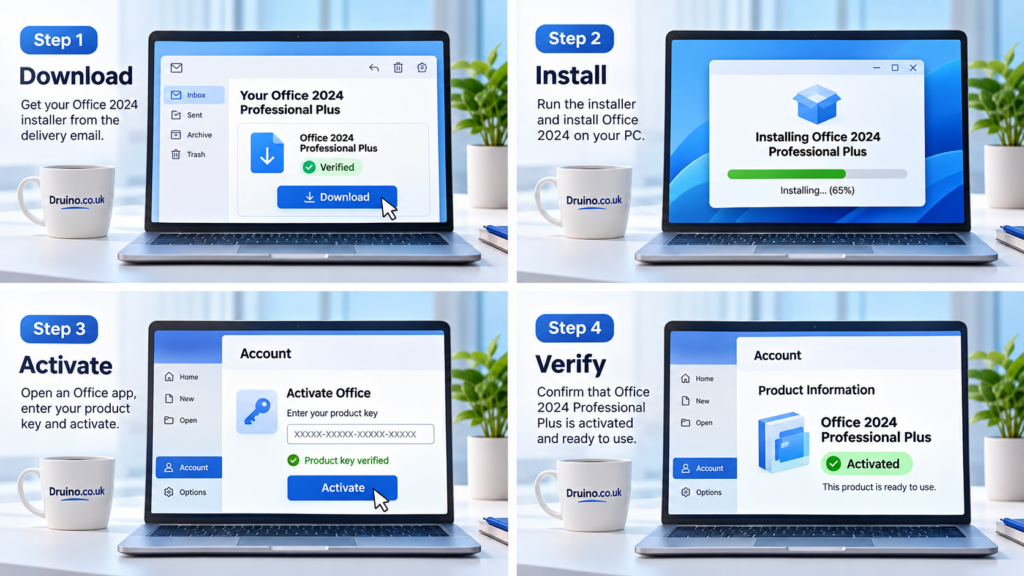
Start with the instructions in the email associated with your Druino order. If a download is provided, verify that it directs you to an authorised Microsoft installation source and matches the licence edition you purchased.
- Open your Druino purchase email and locate the product name, licence details and installation guidance.
- Confirm that the package is intended for Office LTSC Professional Plus 2024, rather than Office Home, Office Home & Business, or Microsoft 365.
- Download the appropriate installer or deployment files from the verified source supplied for your entitlement.
- If any detail is unclear, contact support@druino.co.uk before running a file.
For IT-managed installations: Microsoft documents the Office Deployment Tool as the supported deployment method for Office LTSC 2024. Administrators should use an XML configuration appropriate to their organisation and licence.
Step 2: Install Office 2024 Professional Plus
If your Druino order includes a verified installer
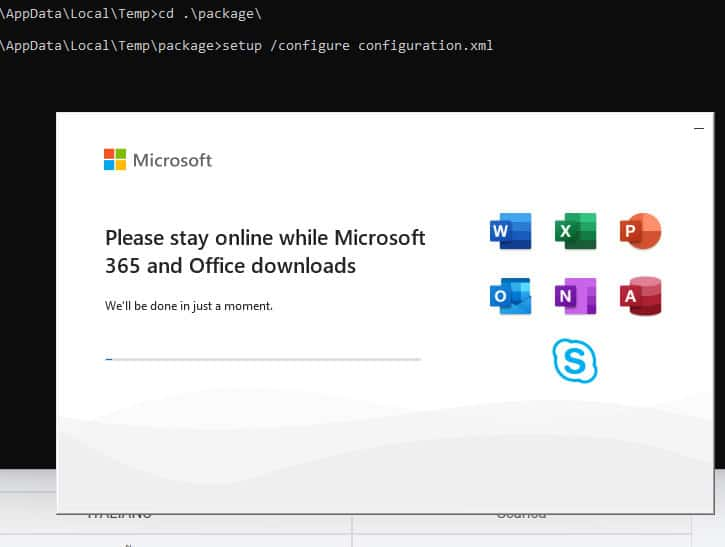
- Open the supplied installation instructions and locate the downloaded setup package.
- Launch the genuine Microsoft installer using the method described in those instructions.
- Review any prompts and allow setup to finish. The screens and available choices vary by installation package.
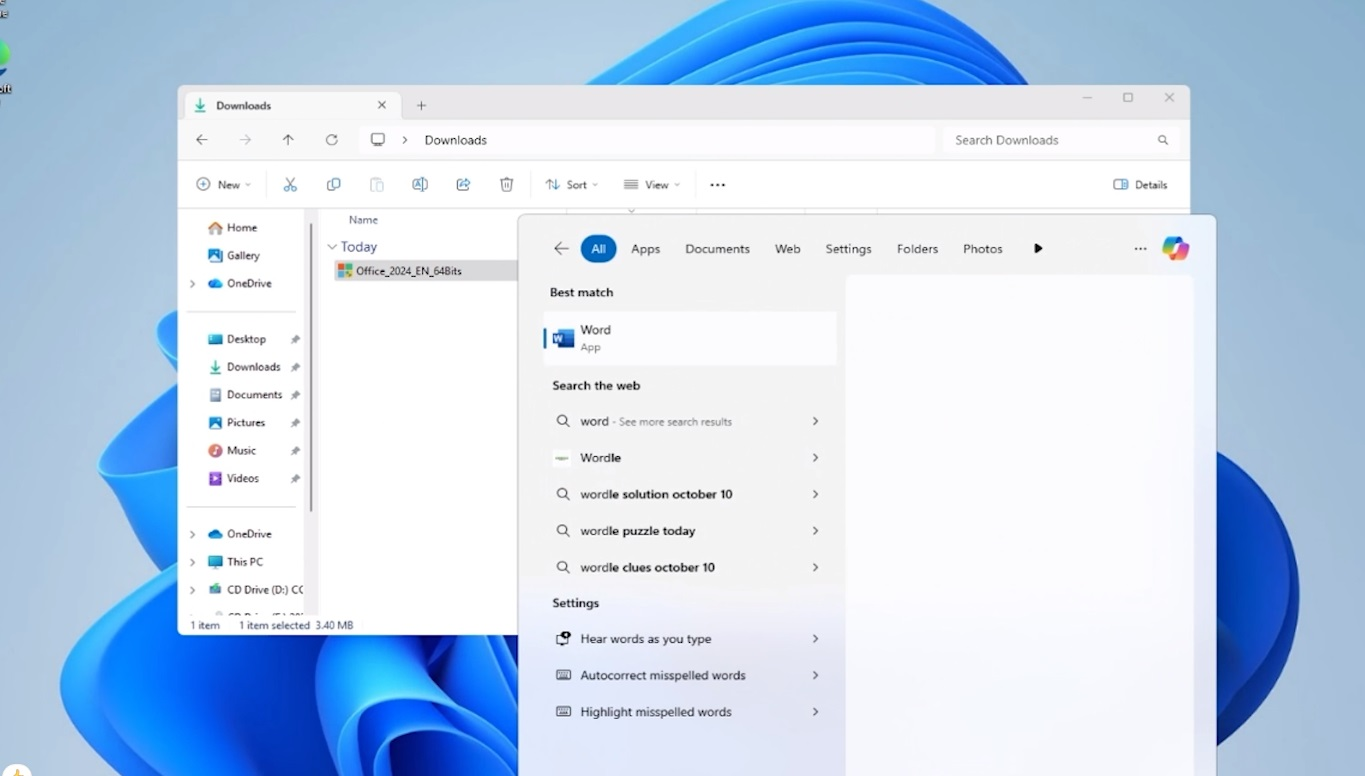
- When setup confirms completion, open Word from the Windows Start menu.
If your organisation uses the Office Deployment Tool
- Ask your IT administrator to confirm the Office LTSC Professional Plus 2024 product and licence configuration.
- Download the official Office Deployment Tool from Microsoft.
- Use the organisation-approved XML configuration and Microsoft’s deployment instructions to install the required apps and architecture.
- Allow deployment to complete, then open a desktop Office application to check its licensing status.
Do not use modified installers, cracked downloads or instructions that ask you to disable Windows security protections. A Windows SmartScreen warning should prompt you to verify the source, not bypass the warning automatically.
Step 3: Activate Office 2024 Professional Plus
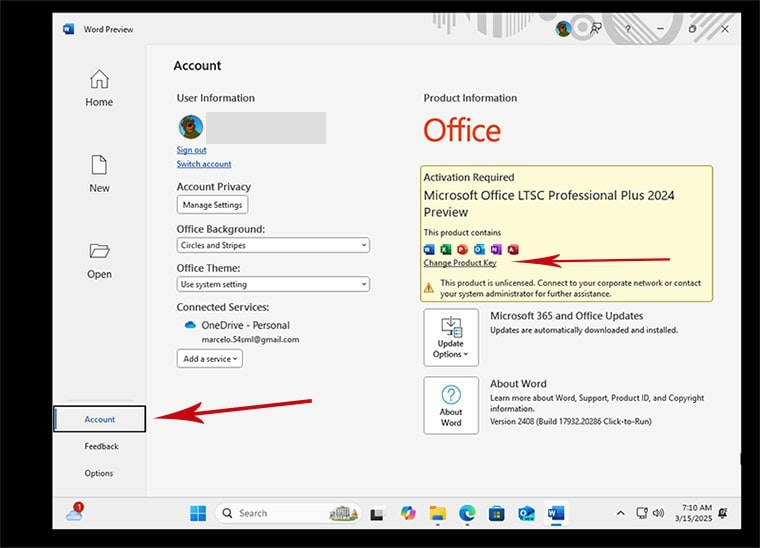
Activation depends on the licence associated with the Office deployment. Office LTSC Professional Plus 2024 commonly uses Microsoft’s volume-activation methods, such as Multiple Activation Key (MAK) or Key Management Service (KMS). A generic retail redemption flow is not necessarily appropriate to this edition.
- Launch Word 2024 or another installed Office application.
- Open File → Account and review the product name and activation status.
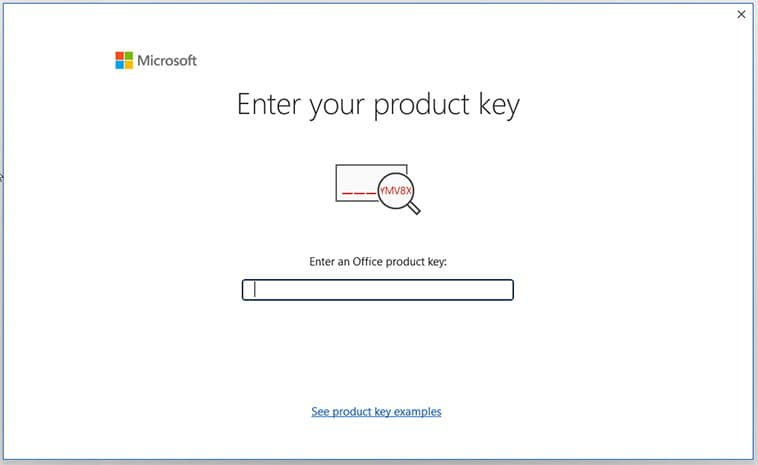
- If Microsoft displays an activation prompt, follow the method supplied with your authorised licence. Enter a key only in an authentic Microsoft activation interface when appropriate.
- For managed KMS deployments, connect through your organisation’s authorised network or ask your IT administrator for assistance.
- Close and reopen the application, then revisit File → Account to confirm its status.
If activation fails or a different Office edition appears, do not try unofficial activators. Contact your administrator or Druino support with your order reference and the exact error message.
Step 4: Check that Office is installed and activated
- Open Word and select File → Account.
- Check the Product Information section for your installed Office edition and activation status.
- Open Excel and PowerPoint to confirm the applications start normally.
- Run Windows Update and apply the relevant Office security updates.
Microsoft’s lifecycle information lists support for Office LTSC Professional Plus 2024 through October 2029. Perpetual licensing does not mean perpetual security support or a right to use the software beyond the terms of your agreement.
How to fix common Office 2024 installation and activation errors
| Problem | What to check |
|---|---|
| The product key is not accepted | Confirm the exact Office edition, key type and entitlement. A MAK key and a retail redemption key are not interchangeable. |
| Office shows the wrong version | Check for an older or conflicting Office installation and review the deployment configuration. |
| Installation does not complete | Check available disk space, Windows compatibility, administrator permissions and the official Microsoft setup log or error message. |
| Online activation fails | Verify date, network access and whether your licence uses MAK or an organisation-managed KMS service. |
| An installer is blocked by Windows | Do not bypass warnings automatically; verify its publisher and obtain the file from a trusted Microsoft source. |
| Office is installed but says unlicensed | Open File → Account, verify the product edition, and contact your IT administrator or Druino support for the correct activation method. |
| You have lost the order email | Search your inbox and spam folder, then contact Druino with the order reference. |
Office 2024 Professional Plus vs Microsoft 365
| Feature | Office LTSC Professional Plus 2024 | Microsoft 365 |
|---|---|---|
| Payment model | Perpetual licence under applicable terms | Ongoing subscription |
| Feature updates | No regular new feature releases | Continual feature updates, according to plan |
| Core desktop apps | Included | Included in eligible plans |
| Cloud features | Limited; depends on services and account | Cloud-connected features depend on plan |
| Copilot | Not included as a standard LTSC feature | Availability depends on subscription and eligibility |
| Ideal for | Organisations needing stable versions | Users needing continuing features and cloud services |
Frequently asked questions
Where can I safely download Office 2024 Professional Plus?
Use the genuine installation source identified in your Druino order instructions, or the official Microsoft deployment resources appropriate to your licence. Avoid cracked installers and third-party activation utilities.
Is Office 2024 Professional Plus free or a subscription?
Office LTSC Professional Plus 2024 is a perpetual, non-subscription product for properly licensed organisations. Its usage rights and device entitlement depend on the specific licence agreement.
Can I install Office 2024 Professional Plus on a Mac?
No. Professional Plus 2024 is a Windows edition. Microsoft offers separate Office editions for macOS.
Do I need to remove Office 2021 or Microsoft 365 first?
Check the current Office installation before proceeding. Incompatible Office products or architectures may need to be removed. Back up your settings and follow Microsoft’s compatibility guidance.
Does installing Office 2024 delete my Word or Excel files?
Installing or removing Office normally does not delete documents saved separately from the application, but backing up important files first is always recommended.
Can I use Office 2024 Professional Plus offline?
The desktop applications can work offline for many everyday tasks after installation and successful activation. Certain activation methods, online services and updates require connectivity.
Can I transfer my Office 2024 key to another computer?
Transfer and reassignment rights depend on the licence type and agreement. Do not assume that uninstalling from one computer automatically permits activation on another.
When does Office LTSC 2024 support end?
Microsoft lists 9 October 2029 as the end of support in its public lifecycle documentation (time-zone-specific displays may show 10 October).
Is Project or Visio included?
No. Project and Visio are separately licensed products and should not be assumed to be included in Office LTSC Professional Plus 2024.
Need help with your Druino Office 2024 order?
If you purchased Office 2024 Professional Plus from Druino, check your order email for your delivery instructions and contact our support team if the installer or activation does not match your licence. Never publish a product key or order details in a public comment.
Support: support@druino.co.uk · Contact Druino
Explore: Office 2024 Professional Plus product page.