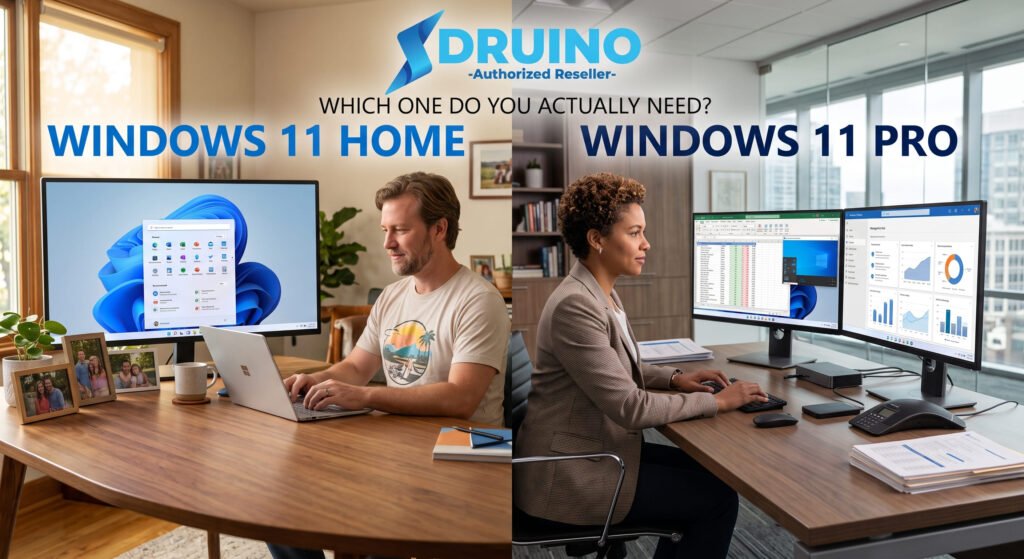
Choosing the right operating system when building a custom PC, purchasing a new laptop, or upgrading an existing machine can be surprisingly confusing. Microsoft offers two main desktop editions for individual users and businesses, making the Windows 11 Home vs Pro decision a crucial step for your setup.
At first glance, both operating systems appear identical. They share the same refined aesthetic, centered taskbar, snap layouts, gaming optimizations, and integrated AI capabilities with Microsoft Copilot. However, beneath the polished surface lies a distinct set of features tailored to very different types of users.
In this comprehensive guide on Windows 11 Home vs Pro, we will examine every key difference, compare advanced security tools, analyze hardware limitations, evaluate gaming performance, and help you determine exactly which version provides the best value for your setup.
What Do Windows 11 Home and Pro Have in Common?
Before diving into the features exclusive to Windows 11 Pro, it is helpful to understand what you get with both versions in the Windows 11 Home vs Pro comparison. If you are using your computer primarily for daily computing, entertainment, or casual work, both editions deliver the exact same core experience.
1. User Interface & Productivity Tools
Both Home and Pro include Microsoft’s modernized interface:
- Snap Layouts & Snap Groups: Easily arrange multiple open windows into neat grids to maximize multitasking.
- Virtual Desktops: Create separate custom desktops for work, personal projects, or gaming.
- Centered Start Menu & Taskbar: Clean, modern layout designed for fast navigation.
- Integrated Microsoft Copilot: AI assistance for drafting text, tweaking system settings, summarizing web pages, and automating everyday tasks.
2. Built-In Gaming Features
Gamers comparing Windows 11 Home vs Pro can rest assured that both editions offer identical performance optimizations out of the box:
- DirectStorage: Accelerates load times by transferring game asset data directly to your NVMe SSD without overloading the CPU.
- Auto HDR: Automatically updates older DirectX 11 and 12 games to high dynamic range color for richer visuals.
- DirectX 12 Ultimate: Full support for ray tracing, variable rate shading, and advanced graphics features on compatible GPUs.
- Xbox Game Bar: Built-in screen recording, performance monitoring, and audio controls.
3. Baseline Security Features
Security is a foundational pillar of Windows 11. Both editions enforce strict hardware requirements—such as TPM 2.0 (Trusted Platform Module) and Secure Boot—and come equipped with:
- Microsoft Defender Antivirus: Real-time protection against malware, viruses, and ransomware.
- Windows Hello: Secure, passwordless biometric authentication using facial recognition, fingerprint scanning, or a PIN.
Key Differences: Advanced Features Exclusive to Windows 11 Pro
When evaluating Windows 11 Home vs Pro, the most significant differences lie in advanced system management, security, and virtualization. While Windows 11 Home covers all daily essentials, Windows 11 Pro unlocks a robust suite of professional tools designed for power users, businesses, and IT administrators.
┌─────────────────────────────────────────────────────────────────┐
│                    WINDOWS 11 PRO EXCLUSIVES                    │
├──────────────────────────────┬──────────────────────────────────┤
│ 🔒 Advanced Security         │ BitLocker Drive Encryption       │
│                              │ Windows Information Protection   │
├──────────────────────────────┼──────────────────────────────────┤
│ 🖥️ Virtualization & Testing  │ Hyper-V                          │
│                              │ Windows Sandbox                  │
├──────────────────────────────┼──────────────────────────────────┤
│ 🌐 Remote & Business         │ Remote Desktop Host              │
│                              │ Group Policy Editor (gpedit.msc) │
│                              │ Azure AD / Domain Join           │
└──────────────────────────────┴──────────────────────────────────┘
1. Advanced Security: BitLocker Drive Encryption
The single biggest security distinction in the Windows 11 Home vs Pro comparison is BitLocker.
- Windows 11 Home includes basic Device Encryption. While it encrypts your hard drive if you log in with a Microsoft Account, it offers zero customization, cannot be used on drive partitions, and cannot encrypt external USB flash drives.
- Windows 11 Pro features full BitLocker Drive Encryption. BitLocker scrambles your entire system drive, secondary internal drives, and external storage devices (via BitLocker To Go). If your laptop is lost or stolen, your data remains completely unreadable—even if an attacker removes the hard drive and plugs it into another computer.
2. Virtualization Tools: Hyper-V and Windows Sandbox
Another major factor in the Windows 11 Home vs Pro comparison is native virtualization support. Power users, developers, and cybersecurity enthusiasts often need to test software in isolated environments without risking their main system. Windows 11 Pro includes two built-in virtualization technologies:
- Hyper-V: Microsoft’s native hypervisor allows you to create and run virtual machines (VMs). You can run alternate operating systems—such as Linux distributions or older versions of Windows—directly inside a window on your desktop.
- Windows Sandbox: A lightweight, temporary desktop environment. When you launch Windows Sandbox, it spins up a clean, isolated virtual machine in seconds. You can download and test untrusted software or open suspicious email attachments safely. Once you close Sandbox, everything inside it is permanently deleted.
(Note: Windows 11 Home users must rely on third-party software like VirtualBox or VMware Workstation Player for basic virtualization).
3. Remote Access: Remote Desktop Host
Remote access functionality is another major distinction in the Windows 11 Home vs Pro comparison. While both Windows 11 Home and Pro can act as a client (connecting to another machine), only Windows 11 Pro can act as a Host.
This means that with Windows 11 Pro, you can securely connect to your primary desktop from anywhere in the world using another PC, Mac, tablet, or smartphone. Whether you need to retrieve files from your home office while traveling or manage a remote workstation, the native Windows Remote Desktop protocol provides a fast, smooth connection without relying on third-party software like TeamViewer or AnyDesk.
4. Administrative Controls: Group Policy Editor
For power users analyzing Windows 11 Home vs Pro, the Local Group Policy Editor (gpedit.msc) is an essential feature found exclusively on the Pro edition.
Group Policy allows you to configure deep system rules that are locked down on Windows 11 Home. With gpedit.msc, you can:
- Block automatic driver updates that might destabilize your system.
- Disable unwanted telemetry, system notifications, or background telemetry.
- Enforce strict security rules across local user accounts.
- Fine-tune network and power management settings.
5. Enterprise & Domain Management
If you plan to use your computer within a business network, Windows 11 Pro is practically mandatory. It includes enterprise management tools such as:
- Active Directory & Azure AD Join: Allows seamless integration with corporate domains, single sign-on (SSO), and centralized management.
- Windows Update for Business: Enables IT administrators to control when and how updates are deployed across an organization.
- Assigned Access (Kiosk Mode): Locks down a device so it can only run a single designated application—ideal for retail point-of-sale systems or public displays.
Hardware Limitations: Windows 11 Home vs Pro
When evaluating Windows 11 Home vs Pro, another important factor to consider is physical hardware capacity. According to the official Microsoft Windows 11 specifications, Windows 11 Home imposes strict upper limits on your PC’s components. While these caps do not affect average consumer systems, they are critical for high-end workstations and server builds.
| Hardware Specification | Windows 11 Home | Windows 11 Pro |
| Maximum RAM Supported | 128 GB | 2 TB (2,048 GB) |
| Maximum CPU Sockets | 1 CPU Socket | 2 CPU Sockets |
| Maximum CPU Cores | 64 Cores | 128 Cores |
For gaming or general office tasks, 128 GB of RAM is far more memory than necessary. However, for video editors rendering 8K footage, 3D animators, data scientists, or virtual machine hosts, the 128 GB ceiling on Windows 11 Home can become a severe bottleneck in the Windows 11 Home vs Pro comparison.
Windows 11 Home vs Pro for Gaming: Is Pro Worth It?
In the Windows 11 Home vs Pro debate among gamers, a common myth is that Windows 11 Pro delivers higher FPS (frames per second) or smoother performance than Windows 11 Home.
The Verdict: Windows 11 Home and Pro offer identical gaming performance.
Both operating systems utilize the exact same graphics driver stack, direct memory management protocols, and CPU scheduling algorithms. Features like Auto HDR, DirectStorage, and Game Mode work identically on both editions.
The only scenario where Windows 11 Pro benefits a gamer is if you frequently tweak background OS processes via Group Policy to strip down background services, or if you store valuable game mods and account credentials on an encrypted drive using BitLocker.
Side-by-Side Comparison Table
To summarize the Windows 11 Home vs Pro breakdown, here is a quick feature comparison table.
| Feature / Capability | Windows 11 Home | Windows 11 Pro |
| Snap Layouts & Centered UI | Included | Included |
| Microsoft Copilot AI Assistant | Included | Included |
| DirectStorage & Auto HDR Gaming | Included | Included |
| Windows Hello & Secure Boot | Included | Included |
| Device Encryption | Basic | Full BitLocker |
| Remote Desktop | Client Only | Client & Host |
| Virtualization (Hyper-V & Sandbox) | Not Supported | Supported |
| Local Group Policy Editor | Not Supported | Supported |
| Active Directory / Azure AD Join | Not Supported | Supported |
| Maximum System Memory (RAM) | 128 GB | 2 TB |
| Multi-CPU Motherboard Support | Single Socket | Dual Socket |
Pro Tip: When evaluating Windows 11 Home vs Pro value for money, remember that upgrading later is always an option. You can comfortably start with the Home edition today and transition to Pro seamlessly if your security or business needs expand in the future.
Windows 11 Home vs Pro Decision Matrix: Which Edition Should You Buy?
To make your Windows 11 Home vs Pro decision as straightforward as possible, consider which profile best matches your primary use case:
Buy Windows 11 Home if:
- You are a gamer: You want maximum frame rates and full access to DirectX 12 Ultimate without paying extra for corporate tools you won’t use.
- You are a student or everyday user: Your daily routine consists of web browsing, streaming media, word processing, and light productivity.
- You are on a tight budget: You prefer to allocate your budget toward physical hardware components (like a faster GPU or larger SSD).
Upgrade to Windows 11 Pro if:
- You work remotely or run a business: You need to log into a corporate domain, enforce data privacy, or host remote sessions from outside the office.
- Data security is your top priority: You carry a lapop containing sensitive client files, financial records, or personal data that requires BitLocker protection.
- You are a software developer or IT practitioner: You frequently rely on virtual machines, Docker containers, Sandbox testing, or Group Policy modifications.
- You own a high-end workstation: Your computer configuration exceeds 128 GB of RAM or utilizes a dual-processor motherboard setup.
How to Upgrade from Windows 11 Home to Pro
Upgrading after reading this Windows 11 Home vs Pro guide is fast and completely hassle-free. Upgrading to a genuine Windows 11 Pro license unlocks enterprise-grade security like BitLocker and native Remote Desktop tools for your PC without reformatting your drive.
With our genuine Windows 11 Home to Pro Upgrade license, you can instantly convert your current system to the full Pro edition in just a few minutes with zero data loss.
Quick Step-by-Step Upgrade Process:
- Get your lifetime license key on the Druino Windows 11 Home to Pro Upgrade product page (delivered instantly by email).
- Open Settings on your Windows 11 PC using the shortcut
Win + I. - Navigate to System > Activation.
- Click on Change product key and enter your new 25-character upgrade key.
- Windows will verify the license, unlock the additional Pro features in the background, and prompt you to restart.
Within minutes, your PC will reboot as Windows 11 Pro with all your personal files, software, and personal settings completely untouched.
Get Genuine Windows 11 Licenses at Druino
Now that you understand the Windows 11 Home vs Pro differences, getting the right operating system key is fast, secure, and straightforward with Druino. When purchasing software online, authenticity, simple delivery, and reliable support are essential. We streamline the entire purchasing process so you can install and activate your software with total confidence.
- Instant Email Delivery: Receive your genuine license key, download links, and setup instructions directly in your inbox immediately after checkout.
- Guaranteed Compatibility: Unsure if your hardware meets the official requirements? Run our Druino Compatibility Checker before you buy.
- UK-Based Support: Having trouble activating your product key? Our responsive support team is available to assist you step-by-step via email (
support@druino.co.uk) or phone (+44 20 8040 4209).
Ready to set up your PC? Buy a genuine Windows 11 Home Key or upgrade to a full Windows 11 Pro Key at competitive prices today.