Creating detailed diagrams and flowcharts requires robust tools, and once you download Microsoft Visio 2024 Professional, you will have everything you need to simplify complex information, map out processes, and collaborate seamlessly. This complete guide will walk you through the exact system requirements, how to get the secure installation files, and the steps to activate your license without any hassle.
System Requirements for Microsoft Visio 2024 Professional
Before you download Microsoft Visio, ensure your computer meets the hardware and software specifications outlined by Microsoft Support for a smooth, lag-free experience.
| Requirement | Details |
| Operating System | Windows 10 or Windows 11 (latest versions, 32-bit or 64-bit) |
| Processor | 1.6 GHz or faster, 2-core processor |
| RAM | 4 GB (64-bit) or 2 GB (32-bit) |
| Hard Disk Space | 4 GB of available disk space |
| Display | 1280 x 768 resolution or higher |
| Graphics | DirectX 10 compatible GPU for hardware acceleration |
| Internet Connection | Required for installation, activation, and regular updates |
Important Compatibility Note
Microsoft Visio 2024 is only compatible with Microsoft Office 2024. If you currently have an older version of Office installed on your system, please contact our support team to get a recommendation for the correct version of Visio that matches your current Office setup.
How to Download Microsoft Visio 2024 Professional
Getting the official, secure installation files takes just a few clicks.
- Purchase your license: Head over to our store and purchase your genuine Visio 2024 Professional license.
- Check your email: Once your purchase is complete, we will instantly send a secure link to download Microsoft Visio directly to your inbox.
- Save the media: Click the link to download the official installation file straight to your computer.
👉 Get Your Genuine License to Download Microsoft Visio 2024 Professional Here
(Buying from us ensures you receive a 100% authentic, fully functional software key.)
How to Install Visio 2024 Professional
Once the file has finished downloading, follow these steps to get the software onto your PC:
- Step 1: Locate the file you got after you chose to download Microsoft Visio and double-click it to launch the setup wizard.
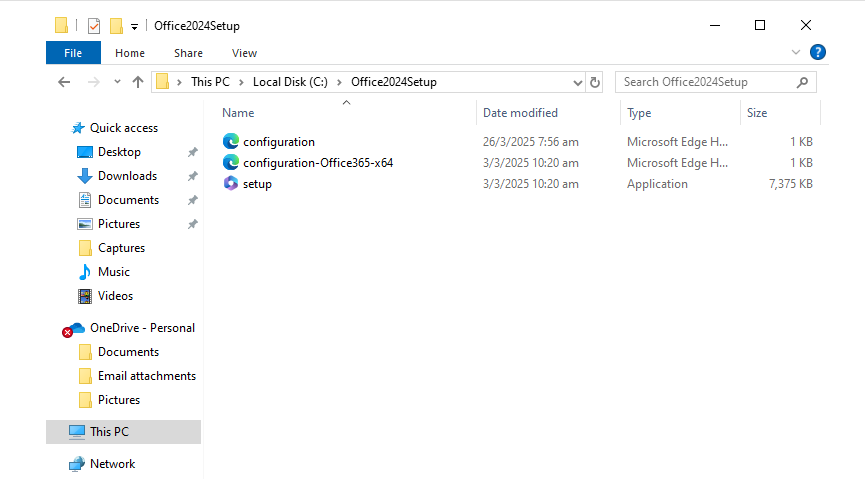
- Step 2 (Choose Installation Type):
- Click Install now to proceed with the standard, recommended default settings.
- Alternatively, click Customize if you want to modify the installation path or choose specific components, then click Next.
- Step 3 (Begin Installation): The installer will now set up the software. Sit back and wait a few moments for the progress bar to complete.
- Step 4 (Finish Setup): Once the confirmation window appears indicating a successful setup, click Close.
How to Activate Microsoft Visio 2024 Professional
To unlock all features and ensure your software receives critical security updates, you need to activate your license key.
- Launch the Microsoft Visio application on your computer.
- If an activation prompt appears immediately, enter your 25-character product key and click Next.
- If you do not see an immediate prompt, navigate to:
File>Account>Activate Product - Select the “Activate via Internet” option when prompted.
- Wait a few moments while Visio connects to Microsoft’s secure activation servers.
- Once verified, a success message will appear confirming your copy is genuine and active.
- Click Finish and restart Microsoft Visio to apply all changes.
Boost Your Productivity Today!
Don’t let messy, unorganized diagrams slow your team down. Upgrade your workflow with a fully licensed, genuine copy today.
🚀 Click Here to Download Microsoft Visio 2024 Professional Now
Why Choose Our Store?
- Immediate Delivery: No waiting around—get your secure download link and product key instantly after checkout.
- Guaranteed Genuine: All keys are 100% verified, authentic, and direct from Microsoft distribution channels.
- 24/7 Expert Support: Stuck on a step? Our beginner-friendly technical support team is available around the clock to help you with installation and activation.
Need assistance right now? Our support team is standing by.