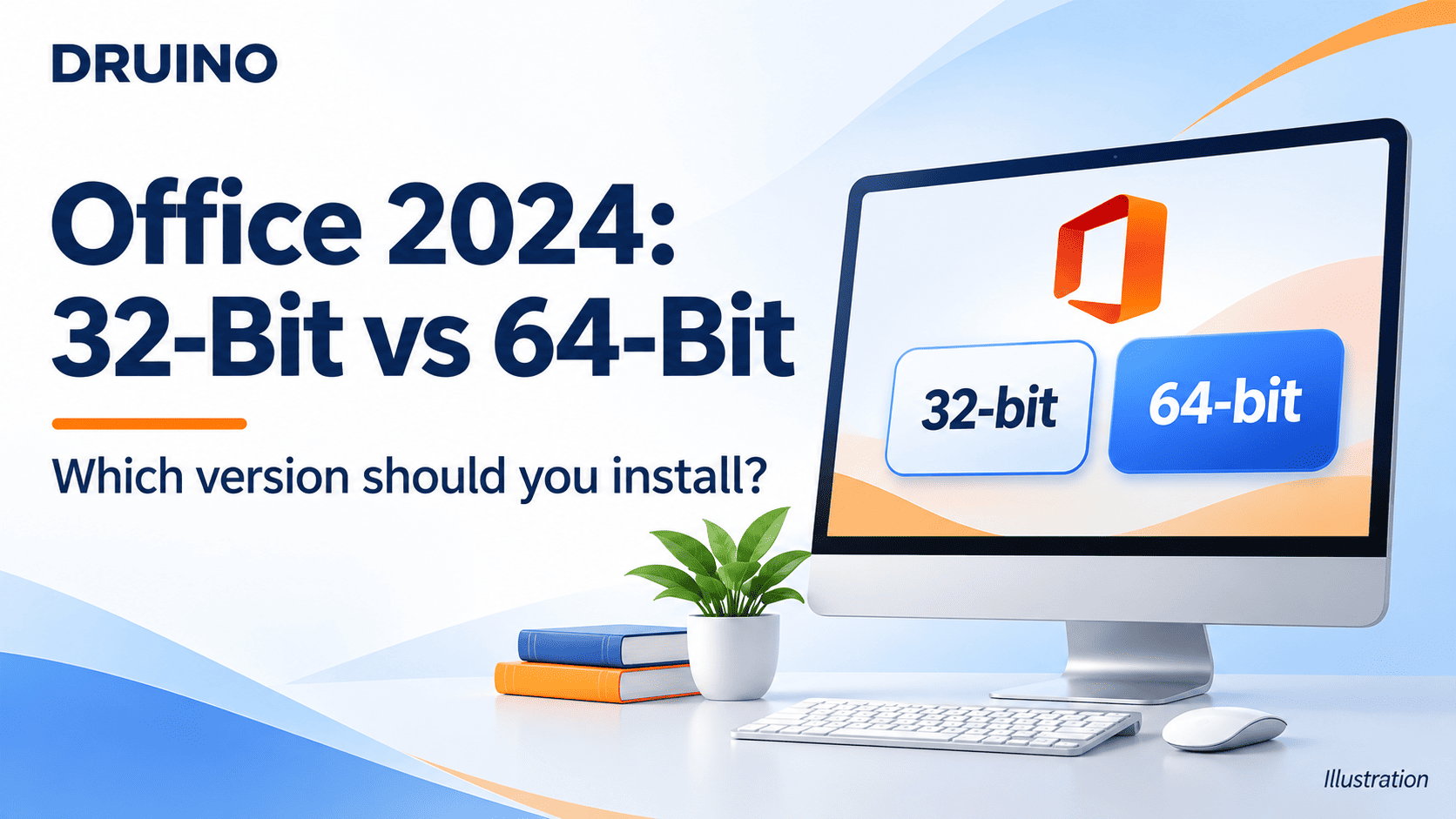
For most modern Windows PCs, 64-bit Office 2024 is the recommended starting point. Choose 32-bit when an essential older add-in or business application requires it. For Office LTSC 2024, Microsoft recommends 64-bit on devices with at least 4 GB of RAM, while advising users to check application compatibility first.
By Druino · Content revised: 14 November 2026
Choosing between Office 2024 32-bit vs 64-bit comes down to your computer, existing software and daily workload. This guide explains the differences, shows you how to identify your current installation and outlines what to check before switching.
Table of Contents
Office 2024 32-Bit vs 64-Bit: Comparison
Both architectures provide the applications included in your chosen Office edition. The main considerations are memory capacity and compatibility with other software.
| Consideration | 32-bit Office 2024 | 64-bit Office 2024 |
|---|---|---|
| Typical reason to choose it | Compatibility with older components | A new installation without legacy dependencies |
| Memory-intensive files | More limited address space | Can address more memory |
| Large Excel workloads | May encounter memory constraints sooner | Better suited to demanding workbooks and data models |
| Older COM add-ins | Supports compatible 32-bit components | Requires compatible 64-bit components |
| Everyday documents | Suitable for routine work | Suitable for routine work |
| Existing Office products | Must match their architecture | Must match their architecture |
64-bit does not mean every task runs twice as fast. Its larger address space matters most when your workload needs it. Microsoft discusses large Excel datasets and complex presentations among the reasons to choose 64-bit Office.
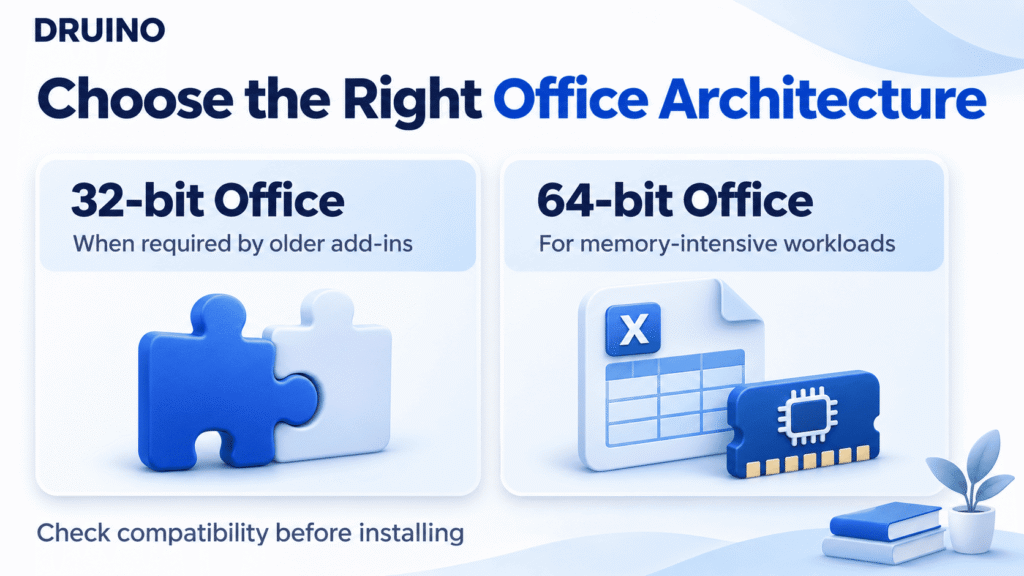
When Should You Choose 64-Bit Office 2024?
For a new installation, consider 64-bit first if your required applications and add-ins support it.
It is particularly relevant when working with demanding Excel files or presentations containing substantial media. However, do not replace a working business installation without checking its dependencies.
Before deciding, answer these questions:
- Does your employer require a particular Office architecture?
- Do you rely on an Excel, Outlook or Access integration?
- Has the supplier confirmed that integration works with 64-bit Office?
- Can you test your important files before changing the installation?
For Office LTSC Professional Plus 2024, Microsoft makes both architectures available and explicitly recommends considering compatibility alongside the device’s memory.
When Does 32-Bit Office Still Make Sense?
Choose 32-bit when a required component has no compatible 64-bit replacement. Examples include older 32-bit COM add-ins, controls or Outlook integrations.
Ask the software supplier whether an updated version is available. Staying with a tested 32-bit setup can be appropriate while an organisation prepares its migration.
Do Older Macros Require 32-Bit Office?
Not automatically. VBA supports both architectures, but code that calls Windows APIs or depends on architecture-specific components may need changes.
For example, declarations involving pointers and handles need appropriate types and 64-bit-compatible declarations. Adding PtrSafe alone does not correct every compatibility issue.
Ask the developer to review and test business-critical macros rather than assuming all older VBA code will fail. Microsoft explains the technical requirements in its 64-bit VBA overview.
How to Check Whether Your Office Is 32-Bit or 64-Bit
Check the installed application rather than guessing from your computer’s specifications.
- Open Word or Excel.
- Open a blank document or workbook if needed.
- Select File → Account.
- Select About Word or About Excel.
- Look for 32-bit or 64-bit in the version information.
The Account screen also identifies your Office product. Record both its edition and architecture before choosing an installer.
Architecture and activation are different checks. To confirm whether your licence is activated, follow our Office 2024 activation status guide.
How to Check Your Windows System Type
To view your Windows architecture:
- Open Start → Settings.
- Select System → About.
- Find Device specifications.
- Read the System type entry.
Windows 11 is available only as a 64-bit operating system. However, this does not tell you which Office architecture is currently installed. Check Office separately using About Word or About Excel.
If the device uses an Arm-based processor, check the requirements for your exact Office product and any required integrations. Microsoft lists Windows 11 as the minimum supported Windows version for Office LTSC 2024 on Arm devices.
Can You Install 32-Bit and 64-Bit Office Together?
Office setup can reject an installation when an opposite-architecture Office product is already present. Check standalone Project and Visio installations as well as the main Office suite.
For example, an existing 32-bit Visio installation can conflict with an attempt to install 64-bit Office.
Choose a consistent architecture across the compatible Office products you need. Matching the architecture is necessary, but product versions and installation technology must also be compatible.
Microsoft documents these conflicts in its 32-bit and 64-bit installation error guide.
If setup is already failing, see our Office 2024 installation errors and fixes.
How to Switch Between 32-Bit and 64-Bit Office 2024
For a manual switch, Microsoft instructs users to uninstall the existing Office architecture before installing the other one. This is not a setting you change inside Word.
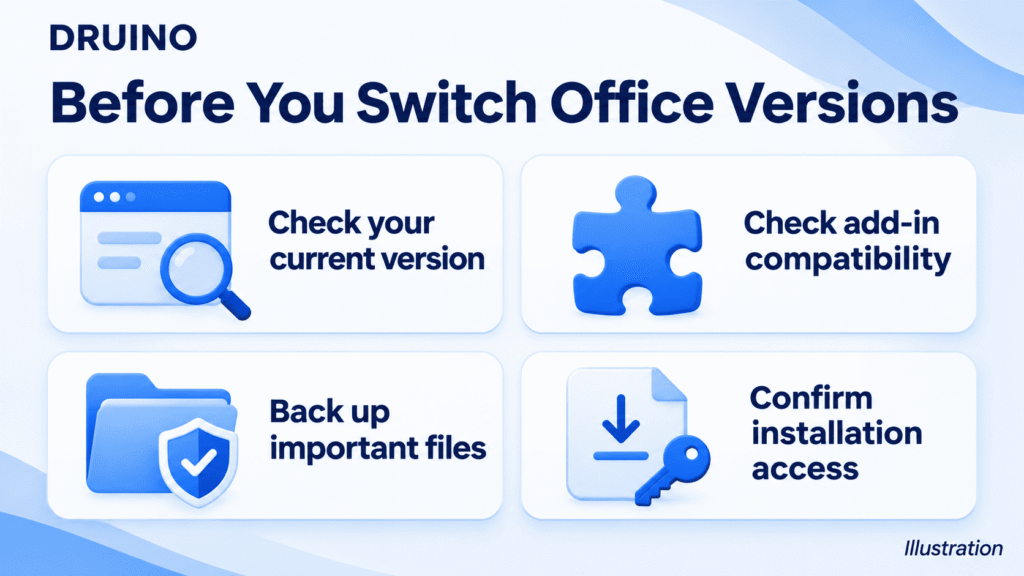
Use this preparation checklist:
- Record your current setup. Note the Office edition, architecture and installed Project or Visio products.
- Check dependencies. Confirm compatibility with essential add-ins, macros and business applications.
- Prepare your backups. Save important files, templates, Outlook data and customisations.
- Confirm your installation access. Make sure you have the correct account, licence details and authorised download instructions.
- Remove conflicting products. Follow Microsoft’s procedure for your installation type.
- Install and test. Open important documents, test integrations and verify activation.
Microsoft’s Office uninstall guide explains the available removal methods. It currently notes that the uninstall troubleshooter cannot uninstall Office 2024.
For installation instructions, follow our Office 2024 Professional Plus setup guide.
Choosing the Architecture for Office LTSC Professional Plus 2024
For an organisation-managed deployment, the administrator selects the architecture through the Office Deployment Tool configuration.
Microsoft documents the OfficeClientEdition setting with values of 32 or 64. The selected architecture should match the organisation’s tested applications and deployment requirements.
An administrator should also review the product, language, update channel and existing installations. Changing architecture alone does not change the Office edition or the licence rights associated with it.
See Microsoft’s Office LTSC 2024 deployment documentation.
Get Help Choosing Your Druino Office Installation
If you purchased Office 2024 Professional Plus for Windows from Druino and are unsure which installer to use, contact Druino support before removing your existing software.
Include:
- Your order number.
- Your Windows version and system type.
- Your current Office edition and architecture.
- Any installed Project or Visio products.
- The names of essential add-ins or business integrations.
These details help distinguish a straightforward installation from a compatibility issue that needs further investigation.
Frequently Asked Questions
Can 32-bit Office run on 64-bit Windows?
Yes, on supported x64 Windows configurations. An essential 32-bit add-in can be a reason to choose it. Check Office’s architecture separately from Windows.
Will my VBA macros work after switching to 64-bit Office?
Many can, but macros using Windows API declarations or architecture-specific components may require changes. Test important workflows before switching and ask the developer to review any errors.
Does 64-bit Office include more applications?
No. The applications you receive depend on your Office edition, not simply on whether you select 32-bit or 64-bit. Check the product’s included applications before purchasing.
Does choosing 32-bit reduce the system requirements for Office LTSC 2024?
Do not assume it does. Microsoft lists a minimum of 4 GB RAM for Office LTSC 2024. Choosing 32-bit for compatibility does not remove the need to meet the product’s system requirements.
Do I need to reinstall Windows to change Office architecture?
Not when your current Windows installation supports the Office architecture you want. Changing Office and changing Windows are separate operations. A move from 32-bit Windows to 64-bit Windows requires a separate operating-system installation process.
Sources
This guide references the following official Microsoft documentation:
- Choose between the 64-bit or 32-bit version of Office — Architecture selection and compatibility considerations.
- Overview of Office LTSC 2024 — Available architectures, Microsoft’s recommendation and system requirements.
- About Office: What version of Office am I using? — How to identify your installed product and architecture.
- 32-bit and 64-bit Windows: Frequently asked questions — Checking the Windows system type.
- 64-bit Visual Basic for Applications overview — VBA compatibility considerations.
- Deploy Office LTSC 2024 — Selecting architecture for managed deployments.