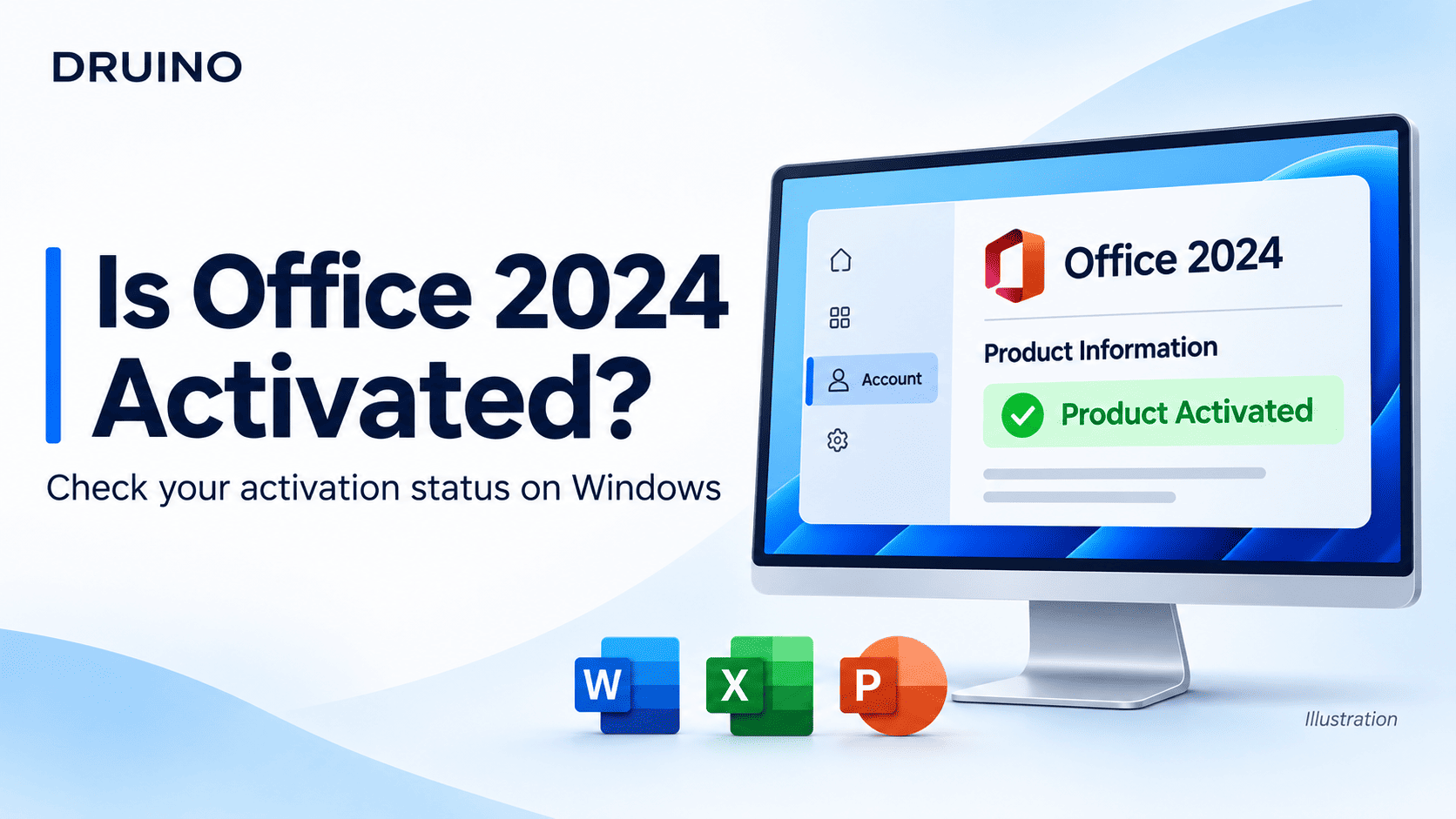
To check whether Microsoft Office 2024 is activated on Windows, open Word or Excel, select File → Account, and look under Product Information. Confirm that the displayed edition matches your Office 2024 licence and look for Product Activated. If you see Activation Required or Unlicensed Product, follow the activation instructions for your edition.
By Druino Tech Team · Content revised: 14 November 2026
Checking your activation status is useful after installing Office, changing your PC or seeing an unexpected licence warning. This guide explains how to check it, interpret the result and get help with a Druino purchase.
Table of Contents
How to Check Office 2024 Activation Status in Word or Excel
You can check the installed Office desktop application without entering another product key.
- Open Word or Excel from the Windows Start menu.
- Open a blank document or workbook.
- Select File in the top-left corner.
- Choose Account.
- Locate Product Information.
- Check the product name and activation message.
Microsoft identifies the Account screen as the place to find your installed Office product and version. For additional details, including whether Office is 32-bit or 64-bit, select About Word or About Excel.
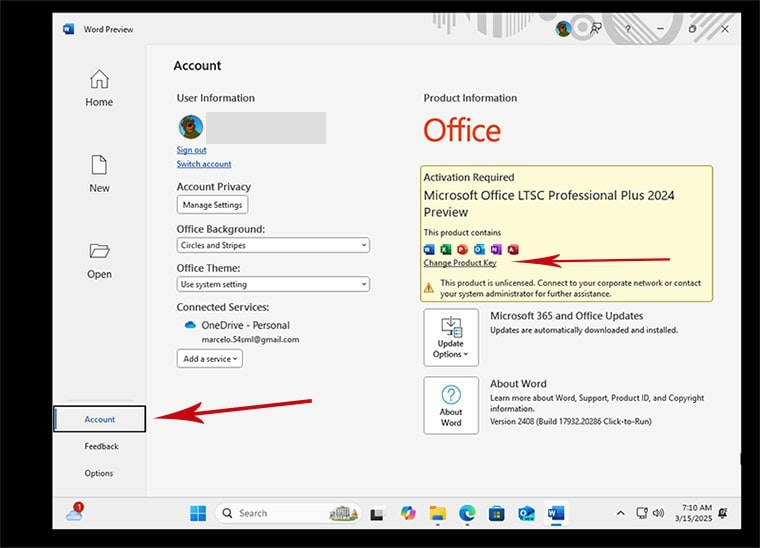
Check the edition as well as the status. An activated Microsoft 365 installation is not the same as an activated Office 2024 installation.
If you have not finished setting up Office, follow our Office 2024 Professional Plus download, installation and activation guide.
What Does Your Office Activation Message Mean?
The wording may vary depending on your edition and installation state.
| Message | What it means | What to do |
|---|---|---|
| Product Activated | The displayed Office product reports that it is activated. | Confirm that its edition matches your licence. |
| Activation Required | Office needs you to complete activation. | Follow the instructions appropriate to your licence. |
| Unlicensed Product | Office cannot confirm an activated licence. | Check your account, installed edition and any error message. |
| Product Activation Failed | An activation attempt did not succeed. | Record the error code and investigate the cause. |
| Microsoft 365 / Subscription Product | You are viewing a subscription product. | Check whether this is the installation you intended to use. |
An Office application may still open when activation has failed. Microsoft explains that an unlicensed installation can have most features disabled, so opening a document alone does not confirm activation.
Check That You Installed the Correct Office Edition
Compare the product name under File → Account with your purchase confirmation.
For example, if you purchased Microsoft Office 2024 Professional Plus for Windows from Druino, check the edition shown against the installation instructions supplied with your order.
Office Home 2024, Office Home & Business 2024, Office LTSC Professional Plus 2024 and Microsoft 365 are different products. Their activation methods are not interchangeable.
Druino’s Office 2024 installation guide explains the distinction between retail Office editions and Office LTSC Professional Plus 2024.
Do not buy another licence simply because an activation warning appears. First establish whether the installed edition and activation method match your existing purchase.
Can You Check Activation Through Your Microsoft Account?
For a retail Office purchase linked to a personal Microsoft account, visit Microsoft Services & subscriptions and sign in with the account used to purchase or redeem Office.
This can help you find the account associated with the product. However, seeing Office in your account does not establish the current activation status of a specific computer. Check File → Account on that PC as well.
For organisation-managed Office LTSC installations, follow your administrator’s instructions. A personal Microsoft account is not a universal activation method for volume-licensed Office.
Advanced Method: Check Office LTSC 2024 Using Command Prompt
For volume-licensed Office LTSC 2024, Microsoft provides the ospp.vbs diagnostic script. It is not the activation diagnostic tool for Microsoft 365 subscription apps.
Open Command Prompt as administrator, then run:
cscript "%ProgramFiles%\Microsoft Office\root\Office16\ospp.vbs" /dstatusFor 32-bit Office installed on 64-bit Windows, use:
cscript "%ProgramFiles(x86)%\Microsoft Office\root\Office16\ospp.vbs" /dstatusIf the script cannot be found, check the actual installation folder. Some installations use a path without \root\.
Find the relevant Office 2024 entry and inspect its licence status. An activated entry normally displays:
Expected result — do not run this as a command:
LICENSE STATUS: ---LICENSED---If multiple licences appear, match the result to the correct product. The /dstatusall option displays all installed licences.
These commands display information without entering a key or changing activation. See Microsoft’s volume activation tools documentation for the supported options.
What to Do If Office 2024 Is Not Activated
Confirm Your Account and Licence
If your edition uses Microsoft account activation, sign in with the account associated with the purchase or redemption.
For an organisation-managed installation, ask your administrator which activation method applies. Follow the instructions supplied with your Druino order if you purchased through our store.
Check Your Connection and Windows Clock
Ensure that your internet connection works and that Windows displays the correct date, time and time zone.
If your organisation uses its own activation infrastructure, ask IT whether you need to connect to the organisation’s network or approved VPN.
Review Other Office Installations
Multiple Office installations can cause activation conflicts. Check which versions are installed before removing anything, especially on a work computer.
Record the Exact Error
Note the full warning and any error code. This helps support identify the problem without repeatedly changing keys or reinstalling software.
Microsoft’s Office activation troubleshooting guide provides further checks for account, installation and connectivity problems.
Get Help With Your Druino Office Purchase
If you purchased Office from Druino and activation still fails, contact Druino support or email support@druino.co.uk.
Include:
- Your order number and the email used for the purchase.
- The Office edition shown under Product Information.
- Your Windows version.
- The exact error message or code.
- A screenshot with personal account details and product keys hidden.
You can also consult our Office troubleshooting guide for additional help.
Frequently Asked Questions
Can I check Office 2024 activation without entering a product key?
Yes. Open Word or Excel and select File → Account → Product Information. You do not need to enter a new key just to inspect the activation status.
Is Office activated if Word opens normally?
Not necessarily. Word may open while displaying an activation warning or allowing only limited functionality. Check the activation message under Product Information.
Does Windows activation also activate Microsoft Office?
No. Windows and Microsoft Office are separate products. An activated Windows installation does not confirm that Office is activated.
Does “Product Activated” prove that my licence is genuine?
It confirms the activation state reported by the installed product. It does not independently establish the seller’s authorisation, ownership or licence transfer rights. Keep your purchase receipt and licence documentation.
Does Office 2024 need an internet connection after activation?
Office 2024 desktop apps can work offline after installation and activation. Microsoft states that retail Office 2024 also requires periodic reactivation, which needs internet access. Office LTSC uses different activation arrangements.
Where can I find Druino’s Office 2024 installation instructions?
Follow our guide to downloading, installing and activating Office 2024 Professional Plus. If your order instructions differ or the edition does not match, contact Druino support before proceeding.
Sources
This guide references the following official Microsoft documentation:
- About Office: What version of Office am I using? — How to identify your installed Office product and find its details under Account.
- Activate Office for Windows — Microsoft’s guidance on activating Office and following activation prompts.
- Tools to manage volume activation of Office — Documentation for the
ospp.vbsscript and licence-status commands used with volume-licensed Office. - Unlicensed Product and activation errors in Office — Troubleshooting guidance for activation failures and unlicensed-product messages.
- What’s the difference between Microsoft 365 and Office 2024? — Differences between subscription and one-time purchase editions, including internet and reactivation requirements.