
Table of Contents
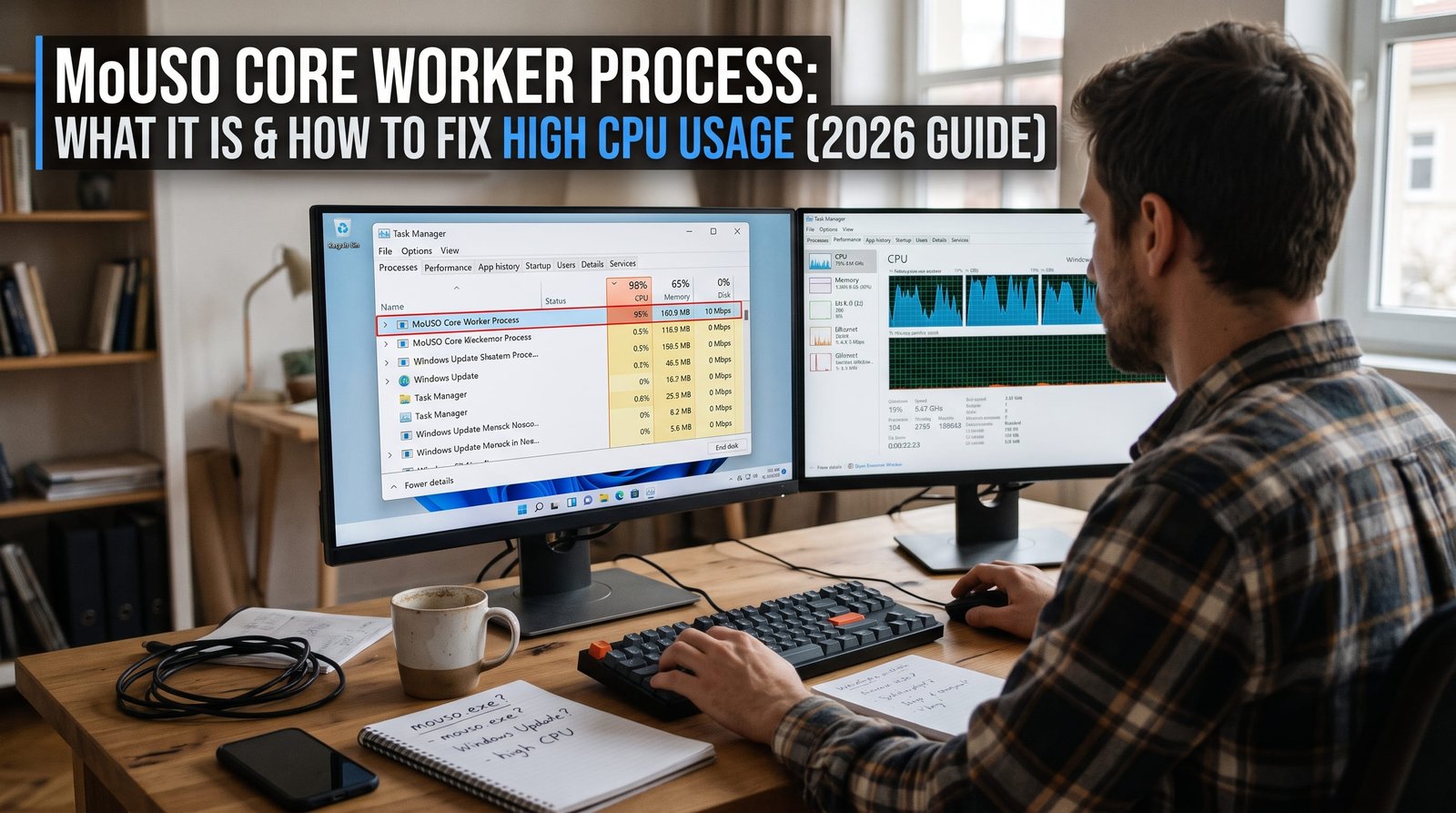
When your Windows computer suddenly begins to lag, internal cooling fans ramp up to maximum speed, or your laptop refuses to enter sleep mode, opening the Windows Task Manager is usually the first troubleshooting step. In many cases, users identify a mysterious background task consuming massive system resources: the mouso core worker process (associated with the executable MoUsoCoreWorker.exe).
Because the name looks cryptic and unfamiliar, many users immediately worry that their computer has been infected by a stealth cryptocurrency miner, trojan, or spyware.
The reassuring reality is that the mouso core worker process is a completely legitimate, core Microsoft Windows system component. However, when update queues stall or background services malfunction, it can monopolize your CPU, exhaust RAM, prevent sleep states, and severely impact system responsiveness.
In this comprehensive 2026 troubleshooting guide, we break down what this process does, analyze whether it represents a malware threat, and provide step-by-step technical methods to resolve high CPU and sleep issues. If system corruption persists, upgrading or repairing your operating system with a genuine digital license from Druino ensures permanent system integrity.
1. What Is the MoUSO Core Worker Process?
The mouso core worker process operates as an integral component of modern Windows 11 and Windows 10 update architectures.
The acronym USO stands for Update Session Orchestrator. The preceding “Mo” designates Mobile/Modern. Introduced in major revisions of Windows 10 (replacing the legacy wuauclt.exe utility), the Update Session Orchestrator manages the sequencing, scheduling, downloading, and silent installation of operating system updates, quality patches, and security hotfixes.
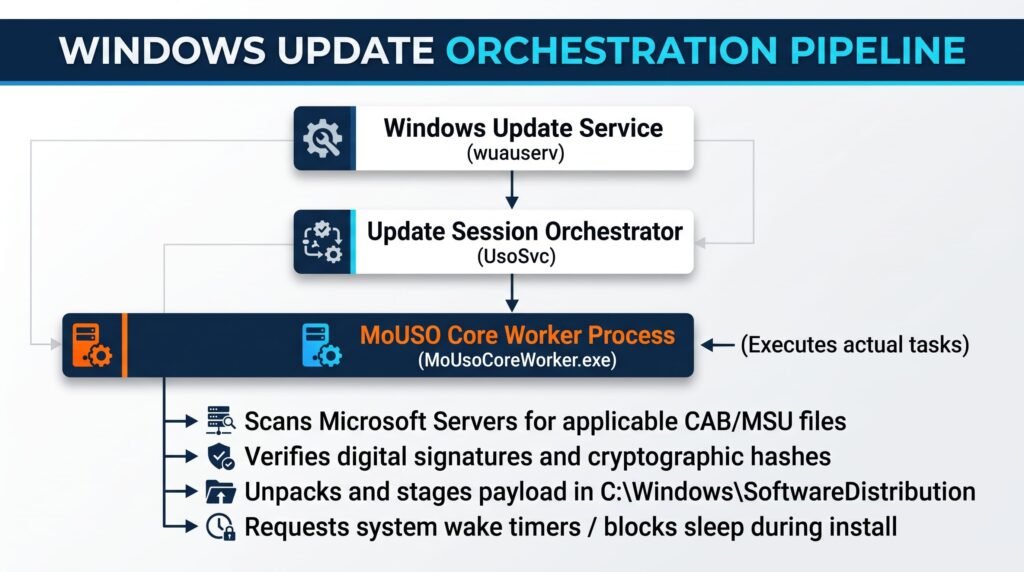
Key Responsibilities of MoUsoCoreWorker.exe:
- Update Verification: Coordinates with Microsoft servers to verify which hardware drivers, cumulative updates, or .NET definitions apply to your computer.
- Integrity Validation: Inspects cryptographic checksums and digital certificates to verify payload integrity before installation.
- Execution Management: Controls when an update installs silently in the background versus when it prompts the user for an operating system restart.
- Power Management: Interacts with the Windows Kernel power manager via wake timers to execute scheduled maintenance tasks outside of active working hours.
2. Why Does the Process Cause High CPU, RAM, or Disk Usage?
Under normal operating conditions, the mouso core worker process remains idle, consuming 0% CPU and minimal system memory. However, resource usage spikes can persist due to specific underlying failures:
- Pending Restart Loop: Windows has downloaded a cumulative patch and requires a system reboot. Until that restart occurs, the orchestrator keeps background threads active in memory.
- Corrupted Update Cache: If an update package downloads partially due to an interrupted internet connection, the process can enter an infinite verification loop trying to unpack corrupt archive data.
- Power Plan and Sleep Conflicts: The orchestrator sets an active power request to prevent Windows from sleeping while writing critical system files. If an update hangs, the mouso core worker process keeps your PC awake continuously.
- Driver and Hardware Incompatibilities: On older or unverified hardware configurations, background hardware scans conducted during driver updates can lock active CPU cores.
3. Is MoUsoCoreWorker.exe a Virus or Malware?
In over 99% of instances, the file is a legitimate, digitally signed Microsoft system utility. However, malicious programs sometimes mimic legitimate system process names to conceal unauthorized background activity.
How to Verify Authenticity:
- Press
Ctrl + Shift + Escto open the Windows Task Manager. - Locate MoUSO Core Worker Process (or
MoUsoCoreWorker.exe) under the Processes or Details tab. - Right-click the process and select Open file location.
- Verify the directory path. Legitimate copies reside strictly in official system directories:
C:\Windows\System32\C:\Windows\UUS\amd64\(or subfolders ofC:\Windows\UUS\)
- Right-click the
.exefile, select Properties, and click the Digital Signatures tab. The signature must indicate Microsoft Windows.
Security Warning: If the file is located in
C:\Users\YourUsername\AppData\,C:\Temp\, orDownloads, it is likely a malicious imposter. In that scenario, run an immediate system scan using Windows Security or your preferred anti-malware solution.
4. How to Fix MoUSO Core Worker Process High CPU and Sleep Issues
If the process continues to consume excessive hardware resources or keeps your workstation awake, follow these verified technical fixes in sequential order:
Method 1: Check Windows Update and Complete Pending Restarts
The most common trigger for high CPU activity is a pending operating system reboot.
- Press
Windows Key + Ito open Settings. - Navigate to Windows Update (or Update & Security on Windows 10).
- If an update displays a Restart Required badge, click Restart now.
- If no update appears pending, click Check for updates to allow any stalled installations to complete naturally.
Method 2: Run the Official Windows Update Troubleshooter
Windows incorporates built-in diagnostic routines that detect broken registry keys and stalled update queues automatically. For full diagnostic procedures, refer to the official Microsoft Windows Update Troubleshooter Guide.
- Open Settings (
Windows Key + I). - Go to System > Troubleshoot > Other troubleshooters (on Windows 11).
- Find Windows Update and click Run.
- Allow the utility to inspect the Update Session Orchestrator service.
- Apply any recommended automated fixes and reboot your computer.
Method 3: Restart the Windows Update and Orchestrator Services
Restarting background update daemons terminates hung execution threads without corrupting registry hives. If the mouso core worker process is frozen in memory, cycling these background services resets its thread priority immediately.
- Press
Windows Key + R, typeservices.msc, and press Enter. - Scroll down and locate Windows Update.
- Right-click the service and select Restart (or Stop, wait 5 seconds, then Start).
- Locate the Update Orchestrator Service (
UsoSvc) in the same list. - Right-click and choose Restart.
- Open Task Manager to verify that CPU utilization for the mouso core worker process drops back to 0%.
Method 4: Clear the Corrupted SoftwareDistribution Cache
When update payload files become corrupted on disk, the mouso core worker process repeatedly fails while attempting decompression. Flushing the cache folder resolves this loop and stops runaway CPU usage:
- Press
Windows Key + S, typecmd, right-click Command Prompt, and select Run as Administrator. - Stop background update services by running:DOS
net stop wuauserv net stop cryptSvc net stop bits net stop usosvc - Rename the update download cache directories:DOS
ren C:\Windows\SoftwareDistribution SoftwareDistribution.old ren C:\Windows\System32\catroot2 catroot2.old - Restart the services:DOS
net start wuauserv net start cryptSvc net start bits net start usosvc - Reboot your PC and run Check for updates in Settings to rebuild a clean cache.
Method 5: Override Sleep Requests Using Powercfg
If your primary issue is that the computer wakes up randomly or refuses to enter sleep mode, use the native Windows power configuration tool detailed in the Microsoft Powercfg Command-Line Reference.
- Open Command Prompt as Administrator.
- Identify what is actively keeping your computer awake by entering:DOS
powercfg /requests - If
MoUsoCoreWorker.exeorUSO Workeris listed under EXECUTION or SYSTEM, input the following override command:DOSpowercfg /requestsoverride process MoUsoCoreWorker.exe execution - This command prevents the process from holding an awake lock, allowing your computer to sleep normally according to your power plan settings.
Method 6: Repair Core Windows Component Stores (SFC & DISM)
If the mouso core worker process continues to crash or spike after cache resets, core system files may be damaged. Repair the component store using official Microsoft deployment utilities:
- Open Command Prompt as Administrator.
- Run the System File Checker to scan protected system files:DOS
sfc /scannow - Once verification finishes, execute DISM to repair the local component store:DOS
dism /online /cleanup-image /restorehealth - Restart your workstation to commit the repaired binary components.
5. Summary Table: Troubleshooting Quick Reference
| Symptom Observed | Primary Root Cause | Recommended Action |
| High CPU (30% to 100%) | Stuck update download or verification loop | Clear SoftwareDistribution folder and restart services |
| PC Wakes From Sleep | Active update wake timer in Windows Kernel | Run powercfg /requestsoverride command |
| High Disk / RAM Usage | Decompressing large cumulative update CAB files | Allow installation to finish, then restart workstation |
| File Located in AppData | Possible malware disguising as system worker | Perform full Windows Defender / offline antivirus scan |
6. Maintain a Clean, High-Performance Operating System with Druino
Persistent glitches from the mouso core worker process often point to underlying operating system instability caused by modified ISO images, outdated trial builds, or systems that have skipped critical security lifecycles.
Running an unverified or cracked copy of Windows exposes your workstation to corrupt update loops, unstable services, and security vulnerabilities. Upgrading to a genuine, fully activated edition of Windows 11 Pro or Windows 10 Pro ensures seamless access to Microsoft update servers, enterprise Group Policy controls (GPO), and permanent system reliability.
When you purchase your digital licenses from Druino, you benefit from:
- 100% Genuine Microsoft Retail Keys: Directly verified through official Microsoft activation channels.
- Instant Digital Delivery: Receive your product activation key, setup guide, and official tax invoice immediately via email.
- Lifetime Ownership Guarantee: Single one-time purchase with permanent activation and zero recurring subscription fees.
- Dedicated UK Customer Support: Professional technical guidance available by phone (
+44 20 8040 4209) and email (support@druino.co.uk).
Frequently Asked Questions
Can I delete or permanently disable MoUsoCoreWorker.exe?
No. You should never delete the executable from System32 or permanently disable the Update Orchestrator Service. Doing so prevents your operating system from receiving essential security updates, leaving your machine vulnerable to malware exploits.
How long should the MoUSO Core Worker Process run?
Under normal conditions during active patch cycles, the process runs for 2 to 10 minutes while checking, downloading, and staging update packages. If CPU or disk usage remains elevated for hours with no active network downloads, apply the cache clearing steps outlined in Method 4.
Why does the process keep waking my computer at night?
Windows includes automated maintenance triggers designed to install security patches outside of your configured active hours. If an update encounters an installation error, the orchestrator will periodically wake the PC to retry the deployment. Configuring the powercfg /requestsoverride command eliminates these unwanted wake-ups.
Keep Your PC Fast and Reliable
Background system processes like the mouso core worker process are crucial for maintaining computer security and performance, but they shouldn’t hijack your workstation’s hardware resources. Following the diagnostic methods above will quickly restore normal CPU levels and reliable sleep behavior.
If your operating system continues to experience persistent system corruption or activation errors, explore genuine Windows Operating System Licenses at Druino to secure a fresh, reliable, and high-performance workstation today.


