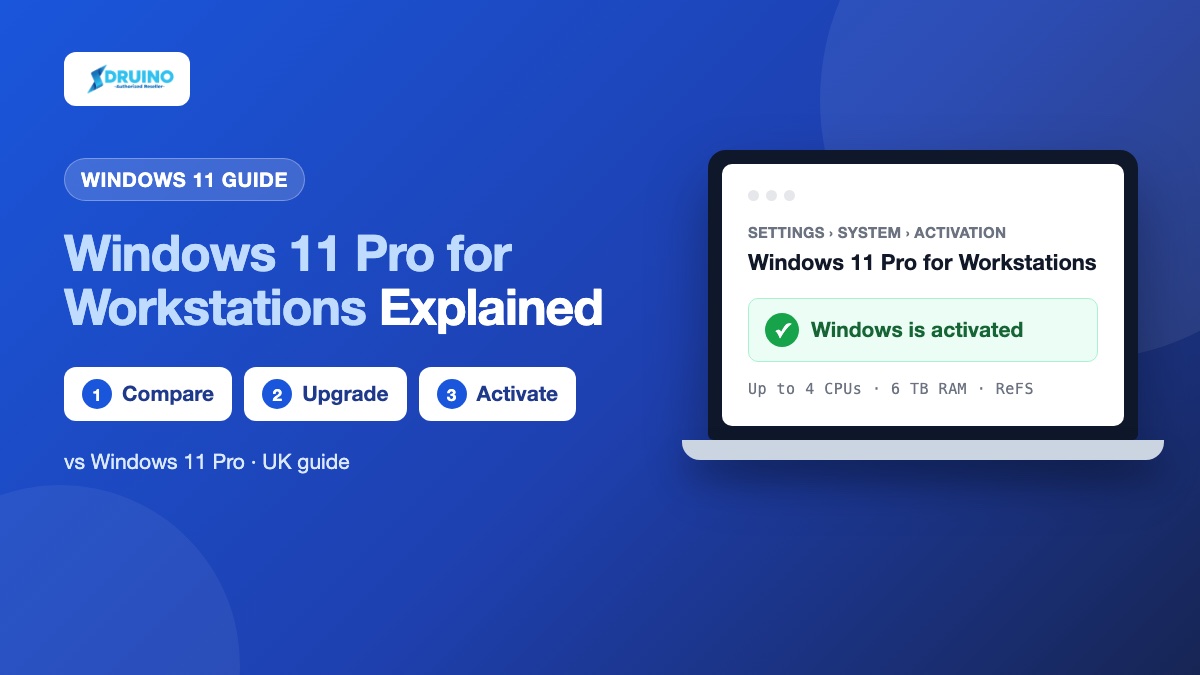
Quick answer: Windows 11 Pro for Workstations is an edition of Windows 11 for high-end PCs. It includes everything in Windows 11 Pro, plus support for up to 4 CPUs and 6 TB of RAM (Pro supports 2 CPUs and 2 TB), the ReFS file system, persistent memory (NVDIMM-N) and SMB Direct networking. You only need it if your PC has workstation hardware. Here is how to activate Windows 11 Pro for Workstations: go to Settings › System › Activation › Change product key and enter your key. A Windows 11 Pro PC upgrades without reinstalling.
This UK guide shows you how to activate Windows 11 Pro for Workstations, either by upgrading from Windows 11 Pro or with a clean installation. It also explains what Pro for Workstations adds compared with Windows 11 Pro, and who really needs it.
What is Windows 11 Pro for Workstations?
Windows 11 Pro for Workstations is the most powerful desktop edition of Windows 11. Microsoft designed it for workstation PCs that run demanding work all day, such as 3D rendering, video editing, engineering simulation, software builds and data science. It looks and works exactly like Windows 11 Pro, but it unlocks extra hardware limits and storage and networking features that only matter on high-end hardware.
Windows 11 Pro for Workstations vs Pro: Key Differences
| Feature | Windows 11 Pro | Windows 11 Pro for Workstations |
|---|---|---|
| Maximum CPUs (sockets) | 2 | 4 |
| Maximum RAM | 2 TB | 6 TB |
| Create ReFS volumes | No | Yes |
| Persistent memory (NVDIMM-N) | No | Yes |
| SMB Direct (RDMA networking) | No | Yes |
| BitLocker, Remote Desktop, Hyper-V | Yes | Yes |
| Group Policy, domain and Entra ID join | Yes | Yes |
| Upgrade path | From Home | From Pro, with a key |
ReFS (Resilient File System)
ReFS is designed for very large amounts of data. Used with mirrored or parity Storage Spaces, it detects corrupted data and repairs it automatically from a good copy, which protects large project files and datasets.
Persistent memory
Persistent memory (NVDIMM-N) is memory that keeps its data when the PC turns off. Pro for Workstations lets you use it as ultra-fast storage for files that need to be read and written very quickly.
SMB Direct
SMB Direct uses RDMA-capable network cards to copy files across the network faster and with less CPU use. It helps when you open large files from a server or NAS over a high-speed network.
Do you need Windows 11 Pro for Workstations?
| Your PC | Best edition |
|---|---|
| Home, school or gaming PC | Windows 11 Home |
| Office or business PC, laptop, developer PC with 1 CPU | Windows 11 Pro |
| More than 2 CPUs or more than 2 TB of RAM | Windows 11 Pro for Workstations |
| NVDIMM-N memory, RDMA network cards or ReFS storage | Windows 11 Pro for Workstations |
In short: a powerful single-CPU PC with a fast graphics card and up to 2 TB of RAM runs just as fast on Windows 11 Pro. Choose Pro for Workstations when you have the hardware that needs it. Comparing Home and Pro? Read Windows 11 Home vs Pro.
System requirements
| Component | Minimum |
|---|---|
| Processor | 1 GHz or faster, 2 or more cores, 64-bit, on Microsoft’s supported list |
| Memory (RAM) | 4 GB or more (up to 6 TB supported) |
| Storage | 64 GB or more |
| Security | TPM 2.0 and UEFI Secure Boot |
| Graphics | DirectX 12 compatible, WDDM 2.0 driver |
| Internet | Needed for setup, activation and updates |
Not sure if your PC is compatible? Run Microsoft’s free PC Health Check app before you buy.
How to Activate Windows 11 Pro for Workstations: Upgrade from Pro (Method 1)
This is the quickest way to upgrade Windows 11 Pro to Pro for Workstations. You don’t need to reinstall anything.
- Buy your genuine Windows 11 Pro for Workstations key and open your Druino order email.
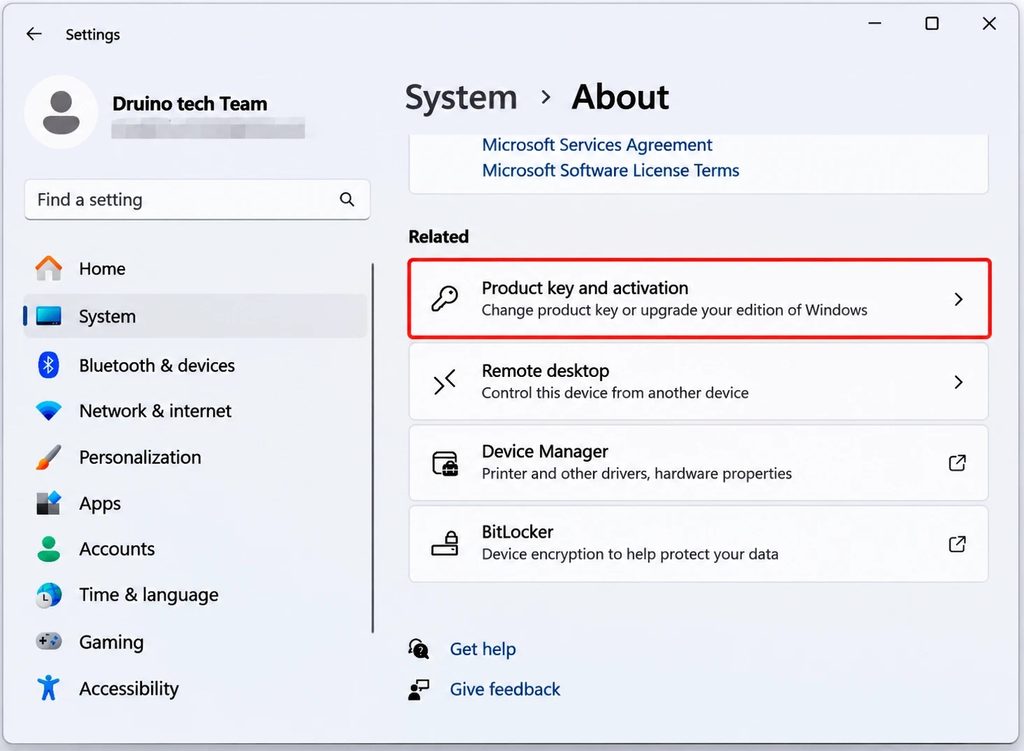
- On your PC, go to Settings › System › About and click Product key and activation (or go straight to Settings › System › Activation).
- Click Change product key and enter your 25-character key.
- Click Start when Windows offers to upgrade your edition. Your PC restarts, and your files and apps stay.
- Go back to Settings › System › Activation and check it says Windows 11 Pro for Workstations and Active.
On Windows 11 Home, upgrade to Pro first, or do a clean installation (Method 2).
Method 2: Clean Install and Activate Windows 11 Pro for Workstations
- Back up your files, then download the Media Creation Tool from Microsoft’s official Windows 11 download page.
- Create a bootable USB drive (8 GB or more) and start your PC from it.
- When asked, enter your Pro for Workstations key, or choose I don’t have a product key and select Windows 11 Pro for Workstations from the list.
- Finish setup, connect to the internet and enter your key in Settings › System › Activation if you skipped it.
For screenshots of each Windows 11 setup screen, see our Windows 11 download, install and activation guide.
How to turn on workstation features
- ReFS: open Settings › System › Storage › Advanced storage settings › Storage Spaces, create a mirrored or parity storage space and choose ReFS as the file system.
- SMB Direct: install an RDMA-capable network card with its latest driver. SMB Direct is used automatically when both PCs or servers support it.
- Persistent memory: install NVDIMM-N modules supported by your motherboard. Windows detects them as persistent memory disks.
Windows 11 Pro for Workstations activation problems and fixes
| Problem | What to do |
|---|---|
| “This product key didn’t work” | Check you typed all 25 characters and that you are on Windows 11 Pro or a clean Pro for Workstations installation. |
| Key not accepted on Windows 11 Home | Upgrade to Windows 11 Pro first, or do a clean installation. |
| Activation fails online | Check your internet connection and the date and time on your PC, restart and try again. |
| Error 0xC004F050 | Usually a typing mistake or the wrong edition installed. Check the key, or contact us with your order number. |
| Lost your product key | Search your inbox and spam folder for your Druino order email, or contact us. |
Frequently asked questions
What is Windows 11 Pro for Workstations?
It is the most powerful desktop edition of Windows 11. It includes everything in Windows 11 Pro plus support for up to 4 CPUs and 6 TB of RAM, the ReFS file system, persistent memory and SMB Direct networking.
How to activate Windows 11 Pro for Workstations without reinstalling?
If your PC already runs Windows 11 Pro, go to Settings › System › Activation › Change product key and enter your Pro for Workstations key. Windows upgrades in a few minutes and keeps your files and apps.
Is Windows 11 Pro for Workstations faster than Windows 11 Pro?
Not on normal hardware. On a PC with 1 or 2 CPUs and up to 2 TB of RAM, both editions perform the same. Pro for Workstations helps only when you use more CPUs or RAM, ReFS storage, persistent memory or RDMA networking.
Is Windows 11 Pro for Workstations good for gaming?
It works for gaming, but it gives no gaming advantage over Windows 11 Home or Pro. For a gaming PC, choose Windows 11 Home or Pro.
How do I upgrade Windows 11 Pro to Pro for Workstations?
Go to Settings › System › Activation › Change product key and enter your Pro for Workstations key. Windows upgrades without reinstalling, and your files and apps stay.
Can I upgrade from Windows 11 Home to Pro for Workstations?
Not directly with every key. Upgrade to Windows 11 Pro first, or do a clean installation and choose Windows 11 Pro for Workstations during setup.
Is Windows 11 Pro for Workstations a lifetime licence?
Yes. A retail licence is a one-time payment for 1 PC, with no subscription. It keeps receiving Windows security and feature updates.
Does Pro for Workstations include Hyper-V and BitLocker?
Yes. It includes every Windows 11 Pro feature, such as BitLocker, Remote Desktop, Hyper-V, Windows Sandbox and Group Policy.
How do I check which edition of Windows 11 I have?
Go to Settings › System › About. Under Windows specifications, Edition shows Windows 11 Home, Pro or Pro for Workstations.
Need help with your Druino order?
If you’re not sure how to activate Windows 11 Pro for Workstations on your PC, or which edition you need, our UK support team can help. Never publish a product key or order details in a public comment.
Support: support@druino.co.uk · Contact Druino
Explore: Windows 11 Pro for Workstations · Windows 11 Pro · Windows 11 Home vs Pro · How much does Windows 11 cost?