
Last reviewed: 6 November 2026
Quick answer: To upgrade Windows 11 Home to Pro, open Settings → System → Activation, select Change product key, enter your 25-character Windows 11 Pro product key and select Next. Windows upgrades to Pro without reinstalling, and keeps your files and apps. Your current Windows 11 Home must be activated first.
Table of Contents
Key facts at a glance
| Item | Detail |
|---|---|
| What you need | A Windows 11 Pro product key (25 characters) |
| Where to enter it | Settings → System → Activation → Change product key |
| Account required | An administrator account on the PC |
| Reinstall needed? | No – the upgrade is applied to your current installation |
| Files and apps | Kept |
| Before you start | Windows 11 Home must be activated |
| One key, one PC | Each Pro key activates one device |
| Alternative | Buy the upgrade in the Microsoft Store |
Windows 11 Home vs Pro: what does Pro add?
Windows 11 Pro includes everything in Home, plus tools for security, remote access and business use.
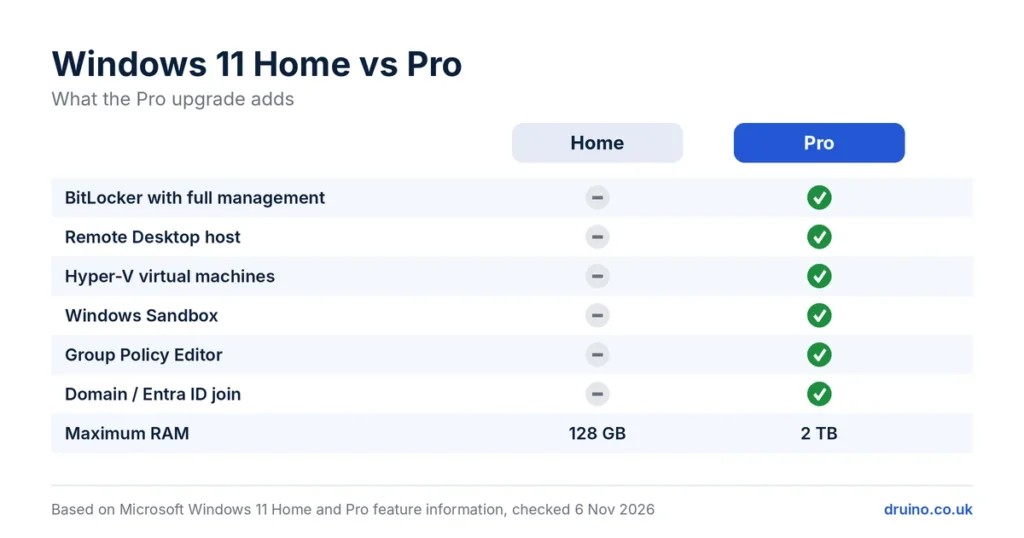
| Feature | Home | Pro |
|---|---|---|
| BitLocker drive encryption with full management | No (device encryption only, on supported PCs) | Yes |
| Remote Desktop host (others can connect to your PC) | No – can only connect to other PCs | Yes |
| Hyper-V virtual machines | No | Yes |
| Windows Sandbox | No | Yes |
| Group Policy Editor | No | Yes |
| Join a work domain or Microsoft Entra ID | No | Yes |
| Assigned Access (kiosk mode) | No | Yes |
| Maximum RAM | 128 GB | 2 TB |
Who needs Pro? Choose Pro if you work remotely on your PC, need encryption for business data, run virtual machines, or manage several PCs. For browsing, office work and gaming, Home is usually enough.
Before you start
- Check your edition: open Settings → System → About. Under Windows specifications, the edition should be Windows 11 Home.
- Check activation: open Settings → System → Activation. The activation state should show Active. If it does not, fix activation before upgrading.
- Sign in as an administrator. The upgrade needs administrator rights.
- Have your Windows 11 Pro product key ready. It is 25 characters long, in five groups of five.
- Save your work and back up important files. Your files are kept, but a backup is always good practice before a system change.
How to upgrade Windows 11 Home to Pro – step by step
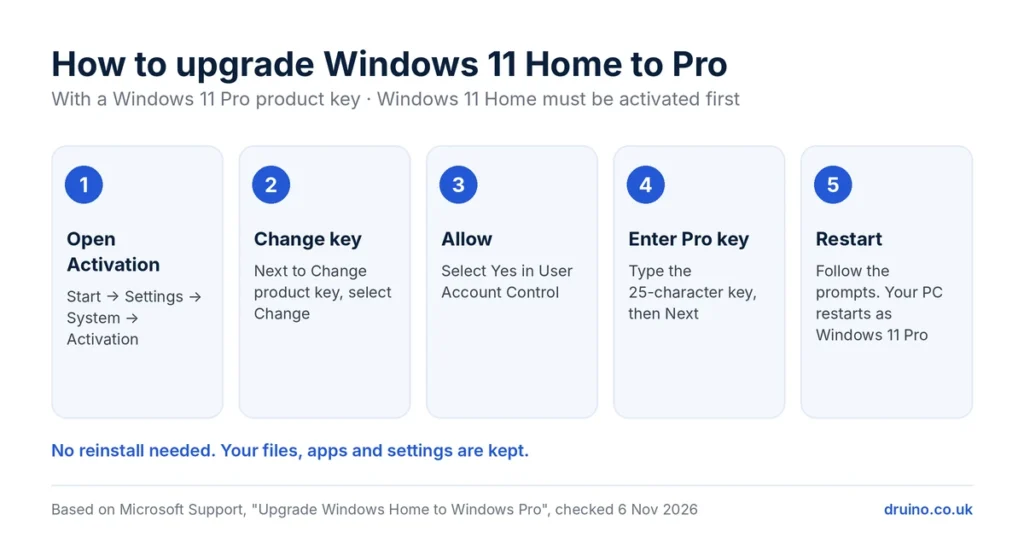
- Select Start → Settings → System → Activation.
- Next to Change product key, select Change.
- If User Account Control appears, select Yes (or enter an administrator password).
- Enter your 25-character Windows 11 Pro product key and select Next.
- Select Activate or Start when asked, and follow the prompts. Your PC restarts to finish the upgrade.
After the restart, your PC runs Windows 11 Pro with your files, apps and settings in place.
No product key? You can also buy the upgrade directly in the Microsoft Store from the same Activation page, or buy a Windows 11 Pro key. Druino sells an Upgrade from Windows 11 Home to Windows 11 Pro key, delivered by email with these instructions.
How to check that Windows 11 Pro is activated
- Open Settings → System → Activation.
- Check that Edition shows Windows 11 Pro.
- Check that Activation state shows Active.
You can also press Windows key + R, type winver and press Enter. The window shows the edition.
Common errors and how to fix them
| Error or message | Likely cause | What to do |
|---|---|---|
| “This product key didn’t work” (0xC004F050) | Key typed incorrectly, or not a Windows 11 Pro key | Check every character, then contact your seller with a screenshot |
| 0x803FA067 | Windows Home is not activated, or no valid licence was found | Activate Windows 11 Home first, then try again |
| Change product key is greyed out | You are not signed in as an administrator | Sign in with an administrator account |
| Upgrade completes but Windows is not activated | Activation servers not reached, or key already used on another PC | Check your internet connection and select Troubleshoot on the Activation page |
If the problem continues, see our troubleshooting guide or contact Druino support with your order number and a screenshot of the error.
Can you go back from Pro to Home?
Not with a product key. Moving from Pro back to Home normally requires a clean installation of Windows 11 Home. Check that you need Pro features before upgrading.
Frequently asked questions
Will I lose my files when I upgrade Windows 11 Home to Pro?
No. The upgrade keeps your files, apps and settings. Windows restarts to finish the upgrade, but it does not reinstall.
Do I need to reinstall Windows to upgrade to Pro?
No. You only need to enter a Windows 11 Pro product key in Settings → System → Activation → Change product key.
How do I know if I have Windows 11 Home or Pro?
Open Settings → System → About. The edition is shown under Windows specifications. You can also press Windows key + R, type winver and press Enter.
Can I use the same Pro key on two PCs?
No. Each Windows 11 Pro product key activates one device.
Why does Windows say my product key didn’t work?
The most common causes are a typing mistake, a key for a different edition, or Windows Home not being activated. Check the key, activate Home first, then try again.
Is Windows 11 Pro worth it for home users?
Only if you need its extra features, such as BitLocker management, Remote Desktop hosting or virtual machines. For everyday use and gaming, Windows 11 Home is usually enough.
Sources
- Upgrade Windows Home to Windows Pro – Microsoft Support
- Install or upgrade Windows using a product key – Microsoft Support
- Windows 11 Home vs. Pro: what’s the difference? – Windows Central
- Windows 11 Home vs Pro compared – PCWorld
Druino is an independent software reseller (DRUINO LTD, company no. 17276922) and is not affiliated with Microsoft Corporation. Microsoft and Windows are trademarks of the Microsoft group of companies. Licences are subject to the publisher’s End User Licence Agreement (EULA).


