
Table of Contents
In professional document production, efficiency, precision, and automation are paramount. Whether drafting comprehensive corporate legal contracts, academic theses, annual financial summaries, or multi-chapter technical manuals, Microsoft Word relies heavily on background dynamic placeholders known as fields. These fields handle everything from page numbering and dynamic cross-references to tables of contents, document author properties, and automated table arithmetic.
However, unlike modern spreadsheet applications like Microsoft Excel, Word does not continuously calculate and update every single calculation in real time as you type. If you insert new headings, rearrange chapters, or append supplemental rows to a financial balance table, your document can quickly display outdated page citations, obsolete figure references, and broken summaries. Mastering the ability to update fields in word is essential for ensuring your technical deliverables remain flawless, accurate, and presentation-ready.
Learning how to update fields in word ensures that your reports maintain absolute structural integrity before you send them to corporate clients, convert them to PDF, or send them to high-volume commercial printers. In this definitive 2026 technical guide, we explore every single method to update fields in word across Windows and macOS environments. We cover essential keyboard shortcuts, document-wide refresh routines, advanced field code switches, automated printing triggers, and troubleshooting steps for stubborn locked fields.
1. What Are Fields in Microsoft Word and How Do They Function?
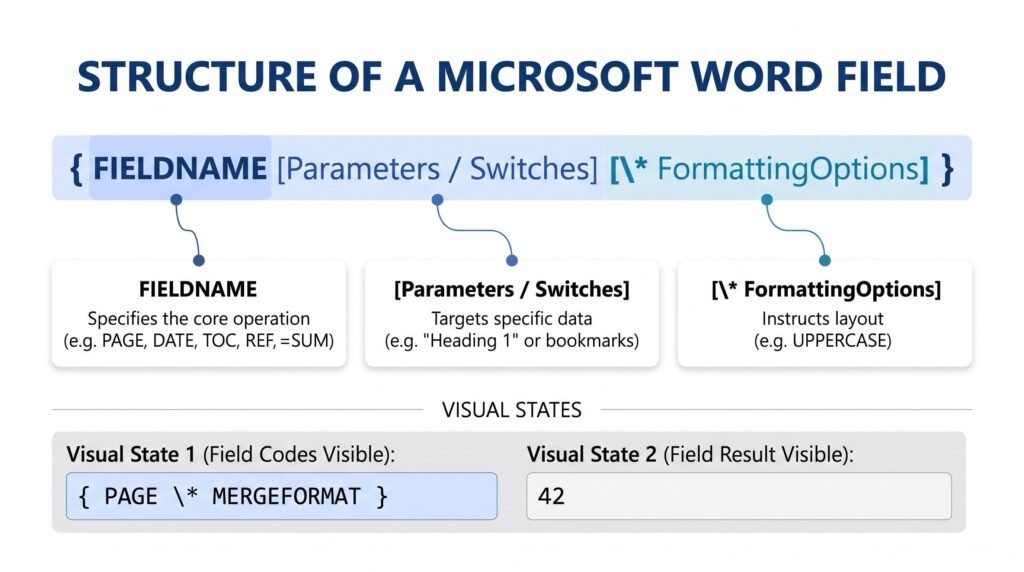
To effectively manage dynamic content, one must first grasp how Microsoft Word conceptualizes and executes fields. In Word, a field is an invisible set of programmatic instructions embedded within the text layer. Rather than displaying raw computer code, Word evaluates the instructions and renders the final calculated output—the field result.
When you need to update fields in word, you are instructing the underlying engine to re-evaluate those programmed instructions against the current state of your document.
Common Types of Fields Found in Business Documents:
- Numbering and Pagination: The standard
{ PAGE }and{ NUMPAGES }fields dynamically compute the active page and the total page count of a section or file. - Document Navigation: The
{ TOC }field parses paragraph styles, collects all heading levels, and compiles an automated, linked Table of Contents. - Contextual Cross-References: The
{ REF }and{ PAGEREF }fields dynamically track figures, tables, and section headings, eliminating the need to manually update phrase citations like “see Figure 3 on page 14.” - System Metadata: Fields such as
{ DATE },{ TIME },{ AUTHOR },{ FILENAME }, and{ FILESIZE }extract operating system metrics and document properties automatically. - Formulas and Calculation Fields: The
{ =SUM(ABOVE) }field performs tabular arithmetic inside standard Word tables without requiring an embedded Excel worksheet.
Before you attempt to update fields in word, toggling field codes helps you diagnose whether you are dealing with a dynamic field or plain static text. By pressing Alt + F9 (or Option + F9 on a Mac), you can switch the entire document view between displaying field results and raw field codes. Official operational parameters are documented in the Microsoft Office Fields Management Guide.
2. Core Methods to Update Fields in Word on Windows
To manually update fields in word on a Windows PC, you have multiple direct options depending on whether you want to refresh a single element or refresh the entire document canvas.
Method 1: The Context Menu (Targeted Single-Field Refresh)
Right-clicking a field is the simplest way to update fields in word individually without disrupting surrounding content:
- Move your cursor over the dynamic item (such as a date stamp, figure caption, or single formula cell).
- Right-click the element to open the contextual pop-up menu.
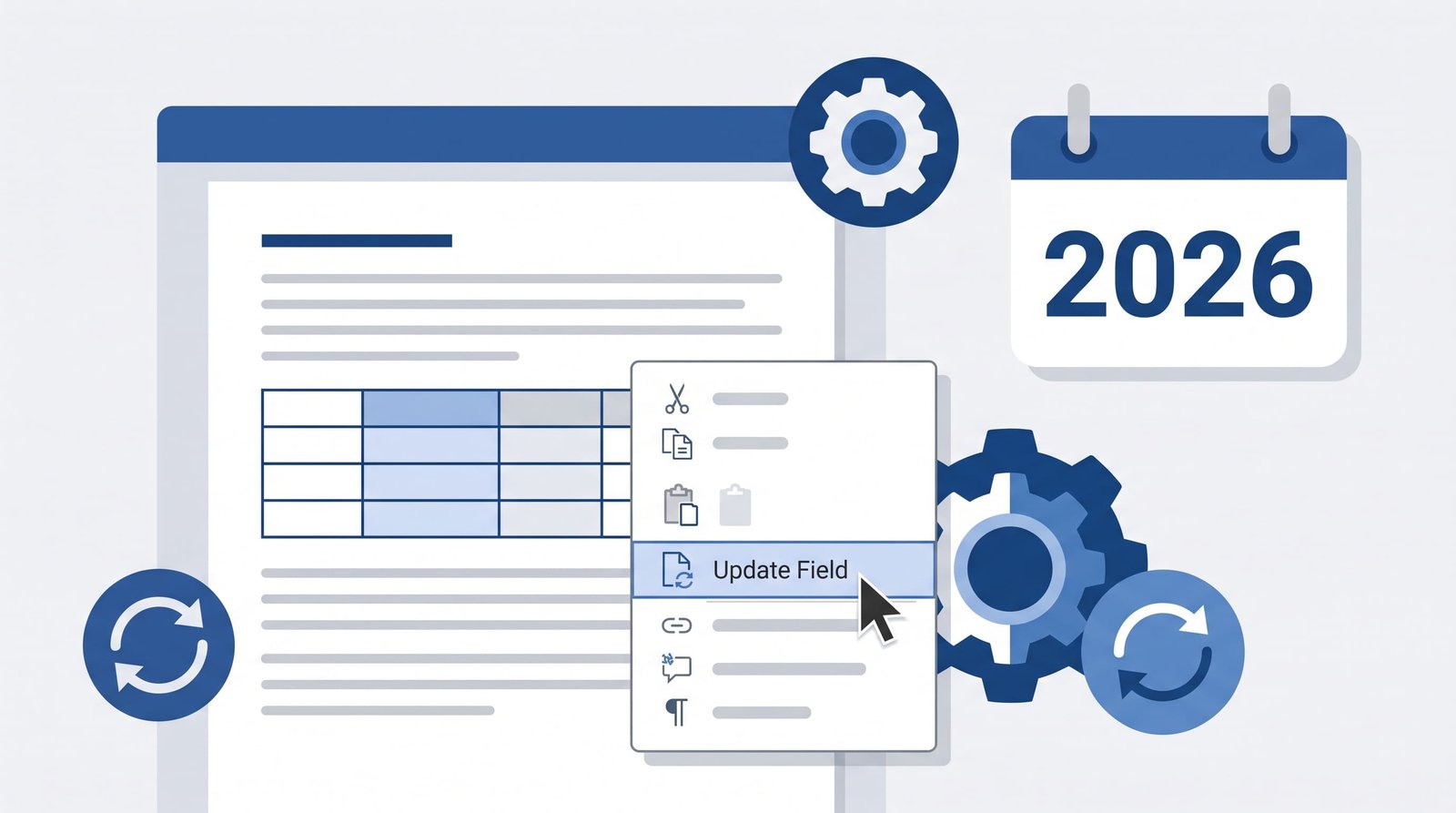
- Click Update Field from the list.
- The field recalculates instantly based on current document parameters.
Method 2: The Direct Keyboard Shortcut (F9)
Using the word f9 shortcut allows you to rapidly update fields in word without touching the mouse:
- Click your cursor inside the field you wish to refresh (or highlight the surrounding paragraph).
- Press the
F9function key on your keyboard. - The highlighted field will flash briefly and recalculate its output immediately.
(Note: On many modern business laptops, standard Function keys double as hardware controls for volume or screen brightness. If pressing F9 lowers your screen brightness, press Fn + F9 instead, or toggle the Fn Lock key).
Method 3: Document-Wide Execution (Update All Fields)
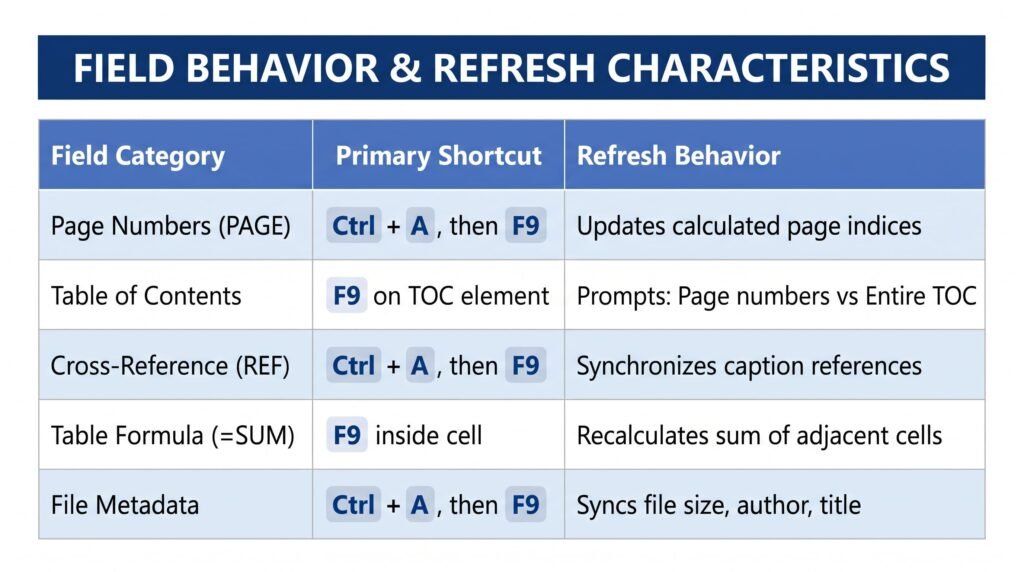
If you want to update all fields in a document at once, the standard workflow to update fields in word involves selecting everything in the main story layer:
- Open your document in Microsoft Word.
- Press
Ctrl + Aon your keyboard to highlight all text, tables, and images in the body of the document. - Press
F9. - If your document includes a Table of Contents or Table of Figures, Word will present a dialog box asking whether to update the entire table or only the page numbers. Choose your preferred update depth.
- Every dynamic calculation within the highlighted document selection will recalculate sequentially.
Method 4: Handling Headers, Footers, and Floating Shapes
Because headers and footers reside in separate document layers, the standard command to update fields in word may leave header page numbers stale. When you press Ctrl + A, Microsoft Word only selects the primary document canvas—it does not select headers, footers, footnotes, or text boxes floating inside graphic drawing canvases.
To refresh secondary document layers:
- Double-click the Header or Footer area of any page to enter edit mode.
- Press
Ctrl + Awhile inside the header/footer space. - Press the
F9key to force dynamic fields like chapter titles or document revision dates to update. - Double-click back into the main document body to close header editing.
3. How to Update Fields in Word for macOS
For Apple users, the steps to update fields in word on macOS feature slight keyboard layout variations due to macOS operating system defaults.
Refreshing Fields on Mac Workstations:
- To effectively update fields in word across a Mac document, select all text by pressing
Command + A. - Press the
F9function key. - On Apple Magic Keyboards and modern MacBook laptops, the top row is assigned to media control by default. Therefore, you must typically press
Fn + F9(orFn + Command + F9) to pass the actual F9 key signal to Microsoft Word.
Reconfiguring Mac Function Key Behavior:
If macOS intercepts your function keys, configuring your System Settings lets you update fields in word seamlessly without holding down the Fn modifier:
- Click the Apple Menu in the upper-left corner of your desktop and select System Settings.
- Navigate to Keyboard in the sidebar.
- Click the Keyboard Shortcuts button.
- Select Function Keys from the list on the left.
- Toggle the switch for Use F1, F2, etc. keys as standard function keys.
- Click Done. You can now press
F9directly inside Word without triggering system-level brightness or volume adjustments.
4. Advanced Scenarios: Tables of Contents, Cross-References & Formulas
Different types of dynamic fields have distinct operational requirements. Understanding these nuances ensures you apply the correct refresh techniques without unintended formatting changes.
4.1 Managing the Table of Contents
When you update table contents, Word asks whether you want to refresh page numbers only or the entire structure:
- Update page numbers only: This option is lightning fast. It recalculates the pagination of existing headings without resetting any custom tab stops, fonts, or inline hyperlink styling you may have manually adjusted.
- Update entire table: This option re-scans the entire document for all paragraphs styled with heading tags (
Heading 1,Heading 2, etc.). It regenerates the entire table layout from scratch. Use this option if you have added new sections, deleted paragraphs, or renamed existing chapter titles.
4.2 Tabular Formulas and Calculation Cells
Unlike Excel, calculating table sums requires you to manually refresh fields word elements whenever row quantities change. If you have a budget table that calculates { =SUM(ABOVE) }, adding an extra line item does not automatically trigger a balance recalculation.
- Place your cursor inside the cell containing the mathematical formula.
- Press
F9. - The total will update to reflect the newly inserted rows above it.
4.3 Captions and Dynamic Cross-References
Whenever you reorder sections, remember to update fields in word to keep figure captions synchronized. If you insert a new diagram between “Figure 1” and “Figure 2”, the new item becomes Figure 2, but the existing Figure 2 does not automatically become Figure 3 until a refresh cycle is triggered. Selecting the whole document (Ctrl + A) and pressing F9 forces the { SEQ } sequencing engine to re-index every figure, table, and cross-reference tag in the document.
5. Automating Field Updates: Print Options and Macro Solutions
Rather than remembering manual keystrokes every time, you can automate how you update fields in word through Word Options. This eliminates human error when producing business-critical documentation.
Method 1: Automatically Update Fields Before Printing
Microsoft Word has a built-in safeguard designed to synchronize dynamic references immediately before a physical print job or PDF export:
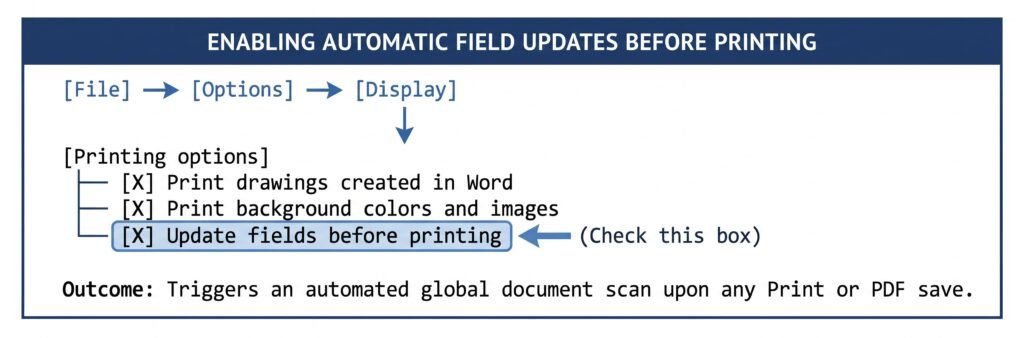
- Click the File tab in the top-left corner of Microsoft Word.
- Select Options at the bottom of the navigation pane.
- In the Word Options dialog box, select the Display category from the left menu.
- Scroll down to the Printing options section.
- Check the box labeled Update fields before printing.
- (Optional) Check the adjacent box labeled Update linked data before printing if your document pulls live tables from external Excel files.
- Click OK to save your preferences.
Enabling background print settings ensures that Microsoft Word will automatically update fields in word every time you send a file to the printer or save the file as a PDF via the standard print dialog.
Method 2: The Print Preview Instant Refresh Trick
Toggling Print Preview acts as an instant global trigger to update fields in word across all document layers—including headers, footers, floating text boxes, and tables of contents—without needing manual selection:
- Press
Ctrl + Pto enter the Print Preview workspace. - Microsoft Word immediately triggers an automated internal refresh cycle across every story layer in the document.
- Press the
Esckey on your keyboard to exit the Print screen and return to the editing canvas. - All dynamic citations, page numbering indices, and mathematical formulas will now reflect their latest values.
Method 3: Advanced Automation via a VBA Macro
Power users often implement a brief VBA script to update fields in word whenever a document is saved or opened. This macro iterates through every story range in the document, ensuring that no complex layer is missed:
VBA
Sub UpdateAllDocumentFields()
    Dim storyRange As Range
    Dim toc As TableOfContents
    Dim tof As TableOfFigures

    ' Loop through every story range in the document (Body, Headers, Footers)
    For Each storyRange In ActiveDocument.StoryRanges
        Do
            storyRange.Fields.Update
            Set storyRange = storyRange.NextStoryRange
        Loop While Not storyRange Is Nothing
    Next storyRange

    ' Explicitly refresh Tables of Contents
    For Each toc In ActiveDocument.TablesOfContents
        toc.Update
    Next toc

    ' Explicitly refresh Tables of Figures
    For Each tof In ActiveDocument.TablesOfFigures
        tof.Update
    Next tof

    MsgBox "All dynamic fields have been successfully updated!", vbInformation, "Druino Automation"
End Sub
To implement this code, press Alt + F11 to open the Visual Basic editor, click Insert > Module, paste the code block into the window, and save the macro. Detailed command syntax can be referenced in the Microsoft Learn Word Developer Reference.
6. Troubleshooting: Why Won’t Word Update Fields?
If you press F9 and nothing happens, several common configuration barriers can prevent your attempt to update fields in word. Use the systematic diagnostic steps below to identify and fix the issue.
6.1 Identifying and Unlocking Locked Fields
A locked field will never refresh; unlocking it with keyboard shortcuts restores your ability to update fields in word. Word allows authors to lock fields to prevent accidental recalculations (such as freezing an invoice date stamp).
- The Lock Command: Pressing
Ctrl + F11locks the currently selected field. - The Unlock Command: Pressing
Ctrl + Shift + F11unlocks the field, restoring normal calculation behavior. - If a field does not respond when you press F9, select the field, press
Ctrl + Shift + F11, and then pressF9again.
6.2 Accidentally Unlinked (Static) Fields
If an unlinking command was executed by mistake, you cannot simply update fields in word because the code has become static text.
- Pressing
Ctrl + Shift + F9permanently unlinks a field. This converts the calculated output into plain, un-editable text and deletes the underlying instruction syntax. - To verify if this occurred, select the text and press
Alt + F9. If the text does not transform into bracketed code like{ PAGE }or{ TOC }, the field has been completely flattened into plain text. You must delete the text and re-insert the dynamic field from the Insert > Quick Parts > Field menu.
6.3 Track Changes and Markup Conflicts
When Word’s Track Changes engine is actively logging modifications, the software often prevents fields from recalculating to avoid generating hundreds of conflicting markup revisions.
- Open the Review tab in the Ribbon.
- Temporarily set tracking to No Markup or accept pending structural revisions.
- Run the update command (
Ctrl + A, thenF9). - Reactivate tracking once your calculations are verified.
7. Master Keyboard Shortcuts & Actions Reference
Keep this quick reference guide accessible whenever you build technical reports or collaborate on enterprise documentation:
| Objective / Action | Windows Keyboard Shortcut | macOS Keyboard Shortcut |
| Update Selected Field | F9 (or Fn + F9) | F9 (or Fn + F9) |
| Update All Fields in Body | Ctrl + A, then F9 | Cmd + A, then Fn + F9 |
| Toggle Field Codes / Results | Alt + F9 | Option + F9 |
| Toggle Single Field Code | Shift + F9 | Shift + F9 |
| Insert a Blank Field Bracket | Ctrl + F9 | Cmd + F9 |
| Lock Active Field | Ctrl + F11 | Cmd + F11 |
| Unlock Active Field | Ctrl + Shift + F11 | Cmd + Shift + F11 |
| Permanently Unlink Field | Ctrl + Shift + F9 | Cmd + Shift + F9 |
For a complete catalog of default hotkeys across Microsoft 365 and standalone editions, review the Microsoft Office Keyboard Shortcuts Documentation.
8. Professional Document Management with Genuine Microsoft Word from Druino
Executing dynamic document routines is far more reliable on modern standalone software; knowing how to update fields in word works best on fully licensed builds. When working with outdated installations, unauthorized copies, or unstable web-based viewers, advanced dynamic features such as OLE object updates, complex field formatting switches, and nested formulas can produce unexpected syntax errors.
Running a fully activated, modern build of Microsoft Word gives you complete access to advanced automation features, deep macro support, and full document compatibility without the recurring monthly expenses of subscription models.
When you upgrade your workstation through Druino, having a genuine build ensures that commands to update fields in word execute smoothly. At Druino, we provide cost-effective perpetual licensing options that let you own your desktop applications outright:
- 100% Genuine Digital Licenses: Directly validated through official Microsoft account verification portals.
- Instant Digital Delivery: Receive your 25-character product key, installation guide, and VAT receipt in your email immediately upon checkout.
- Lifetime Ownership Guarantee: Single one-time purchase with permanent activation and zero recurring subscription fees.
- Dedicated UK Customer Support: Professional technical guidance available by phone (
+44 20 8040 4209) and email (support@druino.co.uk).
If your team is ready to stop renting software, explore our dedicated Druino Software Catalog to secure your genuine, lifetime licenses for Microsoft Word, Office 2024, Project, and Visio today.
9. Frequently Asked Questions (FAQ)
How often should you update fields in word before exporting a PDF?
You should execute an update cycle immediately before every major export or print submission. The most efficient practice is to press Ctrl + P to trigger Word’s automatic pre-render refresh, verify that all numbers in your Table of Contents match the preview pane, and then export to PDF.
Why does pressing F9 change my computer’s volume or brightness instead?
Modern laptops prioritize manufacturer hardware actions over standard function key commands. To resolve this, hold the Fn key while pressing F9 (press Fn + F9). Alternatively, toggle the hardware Fn Lock key (usually located on the Esc key or top row) to make standard F-keys the default behavior.
Does Word automatically recalculate table formulas like Excel?
No. Tables in Microsoft Word are designed primarily for visual layout rather than complex mathematical processing. When you modify values in a table row, the formula cell will continue displaying the old total until you manually click the cell and press F9 to refresh the calculation.
Why do my dynamic fields display { PAGE } instead of numbers?
Your document has field code display mode enabled. Press Alt + F9 (or Option + F9 on a Mac) to toggle field codes off and return to standard formatted results.
Master Document Automation Today
Taking full control of dynamic document features means you never have to worry about whether you forgot to update fields in word. By mastering keyboard shortcuts like F9 and Ctrl + A, configuring automatic print options, and knowing how to troubleshoot locked fields, you can produce pristine, enterprise-grade documents with speed and confidence.
Ensure your office environment is equipped with reliable, permanent desktop productivity software. Explore genuine, lifetime software keys at Druino today and enjoy streamlined digital delivery with dedicated UK customer care.


