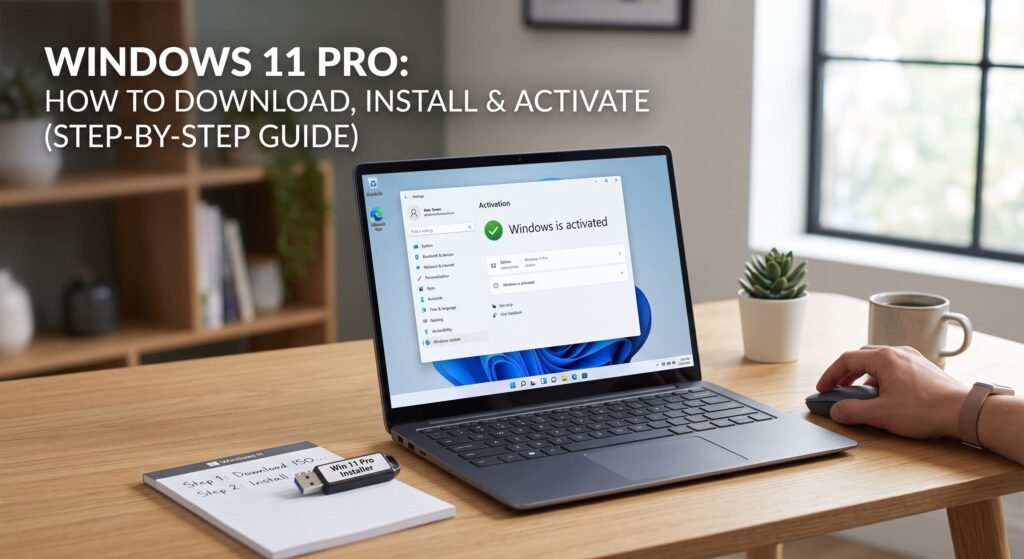
Upgrading to Windows 11 Pro unlocks essential business features, including enterprise-grade BitLocker encryption, Hyper-V virtualization, and Remote Desktop tools. However, if you recently installed or upgraded your operating system, learning how to activate windows 11 properly is essential to remove desktop watermarks, unlock personalization settings, and receive critical security updates from Microsoft.
If you are searching for how to activate windows 11 safely, using official Microsoft installation media combined with a genuine product key ensures your computer remains clean, secure, and fully compliant.
In this complete guide, we cover system requirements, preparing installation media, executing a clean setup, and demonstrating exactly how to activate Windows 11 Pro using a genuine lifetime product key from Druino.
1. Windows 11 Pro System Requirements
Before learning how to activate windows 11, verify that your computer hardware satisfies Microsoft’s minimum system specifications:
| Hardware Component | Minimum System Requirement |
| Processor | 1 GHz or faster with 2 or more cores on a compatible 64-bit processor |
| RAM | 4 GB or larger |
| Storage | 64 GB or larger available storage space |
| System Firmware | UEFI, Secure Boot capable |
| Security Module | Trusted Platform Module (TPM) version 2.0 |
| Display | High definition (720p) display, 9-inch or larger |
| Internet Connection | Internet connectivity required for setup and online activation |
2. What You Need Before You Begin
Having the right tools ready makes the setup and activation process seamless:
- Genuine Windows 11 Pro Key: A 25-character activation key sent straight to your email inbox from Druino.
- Blank USB Flash Drive (8 GB+): Used to create bootable installation media. (All existing files on this drive will be formatted).
- Stable Internet Connection: Required when learning how to activate windows 11 online via official Microsoft servers.
- Administrator Privileges: Local administrator rights to run installer files and execute system commands.
3. How to Download Official Windows 11 Media
Always obtain your operating system installer directly from official Microsoft channels to protect your hardware from malware or tampered ISO files:
- Visit the official Microsoft Windows 11 Download Page.
- Locate Create Windows 11 Installation Media and click Download Now to download the Media Creation Tool.
- Plug your blank 8 GB+ USB drive into an available port on your PC.
- Launch
MediaCreationToolW11.exeas Administrator. - Accept the software terms, choose your preferred language, and select USB flash drive when prompted.
- Choose your plugged-in USB drive and click Next. The wizard will download Windows 11 and construct your bootable media.
4. How to Install Windows 11 Pro
You can perform either a fresh clean installation or an in-place software upgrade.
Option A: Clean Installation (Recommended for New Builds)
- Insert your bootable USB drive into the destination PC.
- Restart the computer and tap your motherboard’s boot key (usually
F12,F11,F8, orDEL) to boot directly from the USB drive. - Configure your language, time zone, and keyboard settings, then select Install Now.
- When prompted for a product code, click ‘I don’t have a product key’. You can complete the full process on how to activate windows 11 inside Settings after installation.
- Select Windows 11 Pro as your preferred operating system edition.
- Click Custom: Install Windows only (advanced), format your primary partition, and follow on-screen instructions to finalize installation.
Option B: In-Place Upgrade (Preserves Files & Apps)
- Plug the bootable USB drive into your active Windows 10 PC.
- Open File Explorer, navigate to the USB drive, and run
setup.exe. - Select Keep personal files and apps, then click Install.
5. How to Activate Windows 11 Pro (Step-by-Step)
Once Windows 11 Pro is installed, you must activate the operating system to unblock personalization options (such as dark mode and custom wallpapers) and remove the activation watermark.
Method 1: Activation via Windows Settings (Easiest)
- Click the Start Menu and open Settings (or press
Win + I). - Go to System > Activation.
- Expand the Change product key section (or click Upgrade your edition of Windows).
- Enter your 25-character Windows 11 Pro Key purchased from Druino and click Next.
- Click Activate. Once verified, Windows will display: “Windows is activated with a digital license”.
Method 2: How to Activate Windows 11 via Command Prompt (CMD)
If the graphical Settings window fails to respond, you can activate Windows 11 using official command-line tools:
- Press
Win + S, typecmd, right-click Command Prompt, and choose Run as Administrator. - Type the following command to install your product key and press Enter:DOS
slmgr /ipk XXXXX-XXXXX-XXXXX-XXXXX-XXXXX(ReplaceXXXXXwith your 25-character product key). - Type the activation command and press Enter:DOS
slmgr /ato - A popup confirmation will confirm that your copy of Windows 11 Pro is successfully activated.
6. Why Buying a Cheap Windows 11 Key Is Better Than KMS Activators
When searching online for how to activate windows 11, you may encounter forums promoting third-party .bat scripts, KMS activators, or crack files promising free activation.
The Hidden Risks of Third-Party Activators:
- Malware & Trojan Exposure: Illegal activation scripts frequently bypass Windows Defender to download spyware, keyloggers, or crypto-miners in the background.
- Server Interception: Unauthorized KMS activators redirect your system authentication to malicious external servers.
- Temporary Activation: Microsoft continuously patches vulnerability exploits, disabling cracked licenses during automatic updates.
Using a legitimate Windows 11 Pro Product Key ensures your device remains permanently activated, fully secure, and backed by official Microsoft support.
7. Troubleshooting Common Activation Issues
If you run into activation hiccups, use these official troubleshooting solutions:
Error 1: Product Key Will Not Activate Online
If network firewalls block automated online verification:
- Press
Win + R, typeslui 4, and press Enter. - Select United Kingdom from the country list.
- Call the automated telephone activation number on screen and follow prompts to obtain your Confirmation ID.
Error 2: “This edition cannot be activated with this key”
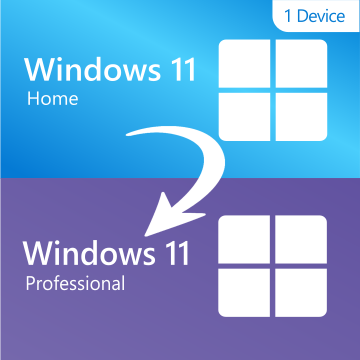
This error indicates you installed Windows 11 Home while attempting to apply a Windows 11 Pro product key.
- Open Settings > System > Activation.
- Click Change product key, paste your Windows 11 Pro key, and let Windows automatically download Pro components.
Frequently Asked Questions
How do I verify the state after learning how to activate windows 11?
Open Settings > System > Activation. Under Activation state, if you see Active, your license is verified and functioning correctly.
Is Windows 11 Pro activation a permanent lifetime license?
Yes. Genuine keys purchased from Druino provide perpetual activation on the designated computer. You pay once and maintain permanent access without recurring charges.
Is it safe to activate Windows 11 using CMD?
Yes, as long as you use the official Microsoft utility (slmgr /ipk) paired with a genuine 25-character product key. Never paste unknown scripts or execute non-official .bat commands.
Can I upgrade from Windows 11 Home to Pro without formatting my PC?
Yes. Simply input a genuine Windows 11 Pro Key under Settings > System > Activation > Change product key. Windows will download the required Pro modules and upgrade your system without deleting personal files.
Get Your Genuine Windows 11 Pro Key at Druino Today
Ready to remove the activation watermark and unlock full operating system features? Avoid shady activators and questionable auction keys.
Purchase a 100% genuine, lifetime Windows 11 Pro Product Key at Druino today. Enjoy instant digital delivery via email, a 100% activation guarantee, and dedicated UK customer assistance (support@druino.co.uk | +44 20 8040 4209).