Introduction: The Undying Legacy of an Operating System Masterpiece
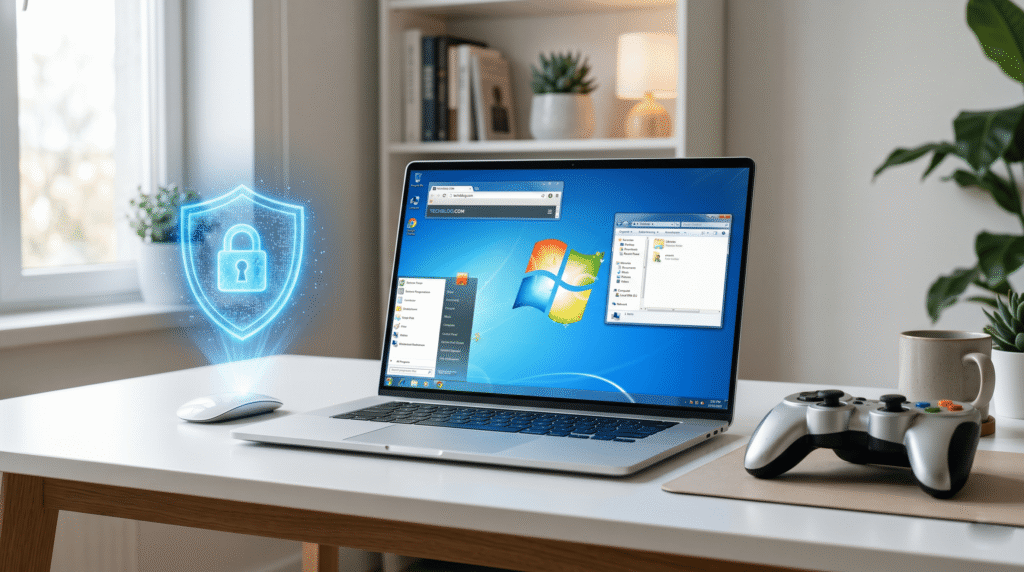
Launched by Microsoft in October 2009, Windows 7 was instantly hailed as a massive triumph. It arrived as the much-needed antidote to the resource-heavy and widely criticized Windows Vista, refining the desktop experience with unprecedented stability, an elegant visual style, and a user-centric philosophy. Among its various editions, Windows 7 Home Premium stood out as the sweet spot for everyday consumers, balancing advanced multimedia capabilities with robust system performance.
Fast forward to 2026. We live in an era dominated by Windows 10, Windows 11, cloud-integrated artificial intelligence, and rigorous modern security baselines. Yet, against all software lifecycles, Windows 7 refuses to fade completely into obscurity.
According to historical platform documentation on the official Microsoft Lifecycle Policy portal, mainstream support for Windows 7 ended in January 2015, and extended security updates completely ceased in January 2023. Despite this, a sprawling global ecosystem of IT archivist communities, dedicated PC retro-gamers, industrial engineering systems, and vintage hardware collectors continue to boot up Windows 7 Home Premium every single day.
Why does this operating system remain so relevant more than a decade after its release? How can tech enthusiasts run it safely in a modern threat landscape? And what are the precise technical steps required to configure, optimize, and activate it today?
This definitive, 2,500+ word mega-guide answers those questions, serving as your ultimate technical reference handbook for Windows 7 Home Premium.
Chapter 1: The Technical Anatomy of Windows 7 Home Premium
To understand why Windows 7 Home Premium retains an almost mythic status among hardware enthusiasts, we must dissect the core architectural elements that made it so efficient compared to both its predecessors and its modern successors.
1.1 The Lightweight Footprint and Resource Efficiency
Modern operating systems like Windows 11 require substantial hardware overhead. They demand multi-core processors, mandatory Trusted Platform Module (TPM 2.0) chips, and upwards of 4GB to 8GB of RAM just to maintain background system telemetry and basic desktop rendering.
Windows 7 Home Premium, by contrast, was engineered during a time when hardware efficiency was paramount. Its official minimum system requirements remain a testament to its optimized codebase:
- Processor: 1 GHz or faster 32-bit (x86) or 64-bit (x64) CPU.
- RAM: 1 GB for the 32-bit version or 2 GB for the 64-bit version.
- Graphics Card: DirectX 9 graphics device equipped with WDDM 1.0 or higher driver.
- Hard Drive Space: 16 GB (32-bit) or 20 GB (64-bit) of available storage.
Because it lacks the heavy background tracking apps, universal Windows platform (UWP) apps, and forced cloud syncing protocols of modern operating systems, a clean installation of Windows 7 Home Premium consumes less than 500 MB of RAM upon boot. This unmatched lightweight footprint makes it the premier choice for restoring older laptops, netbooks, and early-generation Intel Core or AMD Athlon machines to their peak performance state.
1.2 The Evolution of the Desktop Windows Manager (DWM) and Aero Glass
One of the defining triumphs of Windows 7 Home Premium was its visual presentation. Unlike the flat, monochromatic, two-dimensional user interfaces popular in today’s software design, Windows 7 introduced the peak evolution of the Aero Glass interface.
Powered by an overhauled Desktop Windows Manager (DWM), Aero Glass utilized hardware graphics acceleration to render translucent window borders, realistic drop shadows, and rich blur effects. It wasn’t just a cosmetic upgrade; it introduced vital workflow features that users still rely on today:
- Aero Snap: The ability to drag a window to the edge of the screen to automatically snap it to half-screen size—a feature so fundamentally useful it remains integrated into Windows 11.
- Aero Shake: Clicking and shaking a primary window instantly minimizes all other open background windows, clearing workspace clutter instantly.
- Aero Peek: Hovering over the bottom-right corner of the taskbar turns all open windows transparent, allowing an instant glimpse of the desktop gadgets and wallpaper.
1.3 SuperFetch and Core Kernel Optimizations
Beneath the beautiful interface lies a highly advanced NT 6.1 kernel. Microsoft engineers spent years optimizing memory management pipelines following the lessons learned from Windows Vista.
Through an evolved version of SuperFetch, Windows 7 Home Premium intelligently analyzes a user’s habits, pre-loading frequently accessed applications into system memory during idle periods without causing hard drive thrashing. Furthermore, it introduced native, out-of-the-box support for Solid State Drives (SSDs) via the TRIM command, ensuring that file allocation tables didn’t degrade storage drive health over extended usage cycles.
Chapter 2: Core Use Cases – Why Windows 7 is Needed
Running a legacy operating system isn’t merely about nostalgia. In professional environments and specialized hobbyist circles, deploying Windows 7 Home Premium is a practical, sometimes mandatory necessity. Let’s break down the major use cases driving its demand.
2.1 The Ultimate Retro-Gaming Machine
The primary reason PC gaming enthusiasts build dedicated “era-accurate” legacy rigs is software compatibility. During the late 1990s and throughout the 2000s, PC games relied heavily on specific graphic rendering engines, audio pipelines, and digital rights management (DRM) frameworks that modern platforms have completely abandoned.
The DRM Breakdown
Modern operating systems like Windows 10 and Windows 11 have entirely blocked kernel-level drivers for legacy DRM systems such as SecuROM and SafeDisc due to perceived security vulnerabilities. As a direct result, if you insert an original, physical CD-ROM of a classic game like Command & Conquer, The Sims 2, or Mass Effect (2007) into a Windows 11 computer, the game will refuse to launch entirely. Windows 7 Home Premium retains native compatibility with these older disc verification drivers, allowing collectors to run their physical media libraries without relying on sketchy, unofficial third-party cracks.
DirectX 9, 10, and 11 Native Pipelines
While Windows 11 uses emulation layers (like D3D9On12) to translate older graphics calls into modern instructions, this translation frequently causes severe visual bugs, screen flickering, micro-stutters, and hard desktop crashes in classic games. Windows 7 features native, bare-metal hardware execution for DirectX 9.0c, DirectX 10, and DirectX 11. Combined with older GPU drivers from NVIDIA or AMD, it provides an authentic, high-frame-rate, stutter-free environment for games built during the golden age of PC gaming.
2.2 Industrial, Automotive, and Proprietary Hardware Infrastructure
In the commercial sector, upgrading an operating system isn’t always as simple as clicking a button. Thousands of businesses worldwide are tied to complex, incredibly expensive physical hardware arrays that require specific legacy environments to operate.
+-------------------------------------------------------------+
|               TYPICAL LEGACY INDUSTRIAL ARRAY               |
+-------------------------------------------------------------+
| [Proprietary Machinery] ---> [Legacy Driver (Win 7 Only)]  |
|                                             |               |
| [Isolated Workstation] <--------------------+               |
| (Windows 7 Home Premium)                                    |
+-------------------------------------------------------------+
- Automotive Diagnostic Tools: Thousands of independent mechanic shops use vehicle scanning hardware and diagnostic software suites developed in the late 2000s. These specialized tools communicate via specific USB-to-Serial COM port profiles whose underlying drivers are explicitly hardcoded for Windows 7’s architecture.
- CNC and Manufacturing Machinery: Industrial computer-numerical-control (CNC) lathes, laser cutters, and factory automation systems costing tens of thousands of dollars are controlled by internal legacy cards. Upgrading the computer to Windows 11 would mean rendering the entire physical factory machine useless, as modern 64-bit operating systems lack driver signed compliance for these custom enterprise interfaces.
- Scientific Laboratory Equipment: Spectrometers, older medical imaging systems, and data-logging hardware found in universities and clinics often rely on custom software that has never received updates from its original, long-defunct manufacturers.
2.3 Hardware Revitalization and Distraction-Free Workstations
E-waste is a massive global issue. Many older computers featuring dual-core processors and mechanical hard drives simply do not possess the architectural muscle to run modern software suites. By wiping these machines and installing a streamlined copy of Windows 7 Home Premium, users can successfully convert old hardware into functional, secondary workstations.
Furthermore, because modern web browsers and heavy productivity suites no longer update on Windows 7, it naturally creates an ideal distraction-free writing environment. Authors, novelists, and students frequently set up offline Windows 7 laptops to write text documents without the constant interruption of modern app notifications, web tracking, or background operating system pop-ups.
Chapter 3: Feature Breakdown – Home Premium vs. Other Editions
When deploying Windows 7, selecting the correct edition is vital for your target workflow. Microsoft historically segmented Windows 7 into six distinct versions. To help you understand exactly where Home Premium fits, let us look at how it compares to the entry-level and enterprise-tier editions.
3.1 The Complete Comparison Matrix
| Feature / Capability | Windows 7 Starter / Home Basic | Windows 7 Home Premium | Windows 7 Professional / Ultimate |
| Max RAM Supported (64-bit) | 8 GB (Home Basic only) | 16 GB | 192 GB |
| Aero Glass Interface | No / Highly Restricted | Fully Enabled | Fully Enabled |
| Windows Media Center | Missing | Included Natively | Included Natively |
| DVD Video Playback / Authoring | Stripped | Full Native Support | Full Native Support |
| Backup to Network Locations | Local Drives Only | Local Drives Only | Local & Network Shares |
| Domain Join & Group Policy | Disabled | Disabled | Fully Enabled |
| Windows XP Mode Emulation | Unsupported | Unsupported | Fully Enabled |
3.2 Why Home Premium is the Ideal Consumer Sweet Spot
As shown in the matrix above, Windows 7 Home Premium represents the absolute pinnacle of consumer-focused desktop computing. While the Starter and Home Basic editions were heavily locked down—preventing users from even changing their desktop wallpaper or utilizing the Aero Peek multi-tasking framework—Home Premium unlocked the full visual and entertainment engine of the OS.
It features Windows Media Center, a highly acclaimed application that serves as an offline television, movie, and music aggregator. It includes native DVD decoding codecs, allowing users to watch physical media or burn custom home video ISOs directly through Windows DVD Maker without installing buggy, ad-ridden third-party freeware.
While it lacks complex enterprise features like Active Directory Domain Joining or BitLocker drive encryption (found in Professional and Ultimate), these network features are completely unnecessary for standalone offline gaming builds, home workstations, or isolated legacy hardware terminals.
Chapter 4: The Security Matrix – Hardening Windows 7
Let us address the most important aspect of running Windows 7: security. Because Microsoft officially terminated standard security patches, an unshielded Windows 7 machine exposed directly to the open, public internet is highly vulnerable to automated malware scanners, ransomware scripts, and network exploits.
However, by employing advanced enterprise defensive strategies, you can safely minimize attack vectors to near zero.
4.1 The Power of Air-Gapping (Complete Network Isolation)
The absolute gold standard for running any legacy operating system is Air-Gapping. This means ensuring the physical computer has no method of communicating with an outside network.
[ Windows 7 PC ] X (NO WiFi / NO ETHERNET) X [ Internet Router ]
- Action Step: Physically remove or disable internal Wi-Fi cards and unplug the Ethernet cable from the machine.
- Data Transfer Protocol: To move software, retro game files, or drivers onto an air-gapped Windows 7 machine, download the assets using a modern, secure computer running Windows 11. Run a comprehensive malware scan on the downloaded files, transfer them to a dedicated USB flash drive, and plug the flash drive into the Windows 7 computer.
Since malware cannot physically jump across empty air to reach a computer without a network layer, an air-gapped system remains perfectly safe indefinitely.
4.2 Deploying Micro-Patching Solutions (0patch)
If your legacy workstation absolutely must have limited local network connectivity, standard anti-virus software isn’t enough. You should look into specialized enterprise security frameworks like 0patch.
The 0patch platform specializes in distributing “micro-patches”—tiny streams of code injected directly into system memory to fix newly discovered zero-day security vulnerabilities in Windows 7 without requiring a reboot or an official update file from Microsoft. This allows legacy machines to remain protected against critical network vulnerabilities even though official support has long since concluded.
4.3 Software Hardening Protocols
To minimize exploit surfaces on a connected Windows 7 Home Premium terminal, implement the following local operating system adjustments:
- Disable SMBv1 File Sharing: The Server Message Block version 1 protocol is highly vulnerable to network-spreading worms (such as WannaCry). Navigate to Control Panel > Programs and Features > Turn Windows features on or off, locate SMB 1.0/CIFS File Sharing Support, and uncheck it completely.
- Enforce Standard User Accounts (LUA): Never operate your daily legacy tasks inside a full Administrator account. Create a restricted Standard User account for daily software execution. If a legacy script or program attempts to alter system files, the OS will prompt for password confirmation, blocking silent background malware execution.
- Deploy a Hardware Firewall: If the computer is connected to a local network to share files with a legacy printer or server, ensure your main internet router features a strict hardware firewall that explicitly drops all inbound traffic originating from outside the local network subnet.
Chapter 5: Step-by-Step Installation & Legacy Activation Guide
Setting up Windows 7 Home Premium on older or era-accurate hardware requires a slightly different approach than installing a modern plug-and-play operating system. This chapter outlines the precise deployment methodology.
5.1 Preparing the Boot Media
To install Windows 7, you need a high-quality, authentic installation ISO file and a clean USB flash drive (minimum 8GB capacity).
- Insert your flash drive into a modern computer and download the popular open-source tool Rufus.
- Open Rufus, select your flash drive under the “Device” menu, and choose your verified Windows 7 Home Premium ISO file.
- Crucial Setting: Under the Partition Scheme menu, choose MBR (Master Boot Record) if you are installing on an older machine utilizing a classic BIOS. Choose GPT (GUID Partition Table) only if you are targeting a newer system that supports UEFI boot modes.
- Click “Start” to format the drive and write the bootable setup files.
5.2 Slipstreaming Essential Storage & USB 3.0 Drivers
If you attempt to install vanilla Windows 7 on a motherboard manufactured after 2015, you will likely hit a major roadblock: the installer will freeze, or your USB keyboard and mouse will stop working entirely.
This happens because the original Windows 7 installation media lacks built-in drivers for modern USB 3.0 xHCI controllers and NVMe solid-state storage drives. To circumvent this:
- Before booting into setup, utilize an automated tool like the Gigabyte Windows 7 USB Installation Tool or ASRock AIOService to slipstream (inject) generic Intel/AMD USB 3.0 and NVMe drivers directly into your bootable USB’s
install.wimandboot.wimfiles. - Alternatively, ensure you connect your mouse and keyboard explicitly to physical, black USB 2.0 ports on the back of your motherboard, as these rely on legacy legacy drivers built natively into the core Windows 7 setup architecture.
5.3 Activation and Licensing Compliance
Once the installation process completes successfully, you will be greeted by the desktop and a prompt to enter your unique alphanumeric product key to validate activation.
+-------------------------------------------------------+
|               WINDOWS ACTIVATION WINDOW               |
+-------------------------------------------------------+
|  Product Key: [ XXXX-XXXX-XXXX-XXXX-XXXX ]            |
|                                                       |
|  [ Click Here to Activate Over Secure Channel ]      |
+-------------------------------------------------------+
To unlock the full suite of Home Premium customization features, personalize your Aero themes, and remove the disruptive “This copy of Windows is not genuine” black background watermark, entering a verified retail or OEM license key is mandatory. Genuine lifetime licenses ensure your system core files remain fully compliant without risking the introduction of dangerous system cracks or trojans hidden inside piracy tools.
Chapter 6: Troubleshooting & Legacy Solutions
Maintaining a legacy operating system means dealing with unique digital anomalies caused by the evolution of web standards. Here is a comprehensive technical breakdown of common hurdles and how to bypass them.
6.1 The SHA-2 Code Signing Hurdle
If you attempt to install older software packages or specific driver archives on a fresh Windows 7 install, you may encounter error messages stating that the installer package’s digital signature is invalid or unrecognized.
- The Cause: In the past, Windows 7 verified software using an older encryption standard known as SHA-1. Due to cryptographic vulnerabilities, the software industry transitioned completely to SHA-2 code signing.
- The Technical Fix: You must manually install two specific Microsoft offline updates via a USB flash drive: KB4474419 and KB4490628. These updates rewrite the internal cryptographic subsystem of Windows 7, teaching the kernel how to natively read and verify modern SHA-2 signed drivers and software installers.
6.2 Bypassing the SSL/TLS “Connection Not Secure” Browser Errors
If you open the native Internet Explorer browser on a fresh installation of Windows 7 and attempt to access a basic website, the page will almost certainly fail to load, throwing severe SSL/TLS handshake errors.
- The Cause: Modern websites require security protocols known as TLS 1.2 and TLS 1.3. Windows 7 was built back when TLS 1.0 was the standard. Furthermore, the operating system’s internal root certificate library is years out of date, meaning it no longer recognizes the modern security authorities that validate web encryption.
- The Technical Fix: To remedy this without connecting to Windows Update, download a specialized, standalone community browser package such as Supermium or Pale Moon on a modern PC, and transfer it over via USB. These browsers bypass the operating system’s archaic internal network stack completely, utilizing their own built-in, regularly updated cryptographic libraries to view modern HTTPS websites effortlessly.
Chapter 7: The Software Survival Kit for Windows 7
To get real utility out of your legacy setup, you must carefully curate the third-party software you install. Because mainstream developers have abandoned the platform, you must turn to optimized, legacy-compliant application forks.
7.1 Modern Browsers Built for Old Architectures
Standard Google Chrome, Microsoft Edge, and Mozilla Firefox packages will instantly block installation on Windows 7. Do not attempt to use older, outdated versions of these browsers, as their unpatched web engines are highly susceptible to drive-by web exploits. Instead, deploy these specialized alternatives:
- Supermium: An incredible open-source project that takes the absolute latest version of the modern Chromium engine and backports it to run natively on Windows 7, Windows 8, and even Windows XP. It brings full compatibility with modern web applications, rendering engines, and extensions while maintaining lightweight execution.
- Pale Moon (Legacy Versions): A highly efficient browser fork based on Goanna/Firefox source code, designed to maximize CPU processing efficiency on older architecture setups.
7.2 Productivity & Media Playback
- Office Productivity: While modern Microsoft 365 cloud subscription models explicitly mandate Windows 10 or higher, legacy standalone perpetual suites run beautifully. Alternatively, you can install lightweight open-source office frameworks that provide full compatibility with modern
.docxand.xlsxdocument extensions without demanding cloud authentication layers. - Multimedia Execution: Avoid using the old Windows Media Player for modern video files. Install the latest legacy-compatible release of VLC Media Player. VLC includes its own extensive internal database of video and audio codecs, allowing your Windows 7 Home Premium machine to smoothly decode high-definition
.mp4,.mkv, and.avivideo formats using hardware acceleration.
Chapter 8: The Roadmap – Should You Stay or Upgrade?
As an owner of an older computer system, you face an important decision: Should you keep maintaining your Windows 7 Home Premium environment, or is it time to upgrade to a modern operating system? Let’s evaluate your path forward based on your real-world computing goals.
8.1 When You Should Definitely Keep Windows 7
- Your primary objective is playing a vast physical library of PC games released between 1995 and 2010.
- You are running specialized, expensive machinery or hardware devices whose drivers do not exist for modern 64-bit operating systems.
- You own a vintage laptop with less than 4GB of RAM and an older mechanical drive, and you want to use it as a standalone, distraction-free drafting station.
8.2 When It Is Time to Upgrade to Windows 10 or Windows 11
If your primary computer is used for daily modern productivity, online banking, handling sensitive remote-work data, or playing the latest AAA gaming titles released on modern platforms, staying on Windows 7 is highly impractical.
Fortunately, the transition path from a legacy environment to a modern operating system is highly straightforward. If your hardware meets modern specifications, you can securely transition to a clean install of Windows 10 or Windows 11. Upgrading unlocks access to the official Microsoft Support Ecosystem, ensuring your computer receives real-time security patches, full multi-core CPU optimization, and comprehensive safety frameworks designed for today’s web landscape.
Frequently Asked Questions
Is it illegal to use Windows 7 Home Premium today?
Not at all. Using Windows 7 is entirely legal. It remains a permanent piece of software property. So long as you install the operating system using a genuine, verified product license key, your installation is fully compliant with standard retail software licensing guidelines.
Can I run Windows 7 inside a virtual machine on a Windows 11 PC?
Yes, this is an incredibly popular approach. If you don’t want to build a dedicated physical retro-computing rig, you can install virtualization software (like Oracle VirtualBox or VMware Workstation) directly inside Windows 11. You can then install a genuine copy of Windows 7 Home Premium within that secure virtual environment, allowing you to run older games and legacy apps inside an isolated window without risking your main host system’s security.
How do I check if my Windows 7 installation is properly activated?
Click on the Start Menu, right-click on the Computer option, and select Properties. Scroll down to the bottom of the system information window that appears. Under the “Windows Activation” header, you should clearly see a message stating “Windows is activated,” alongside your official Product ID badge.
Will my modern USB flash drives work with Windows 7 Home Premium?
Standard USB flash drives utilizing the FAT32 or exFAT file allocation formats will work natively without any external drivers. However, if you plug a flash drive into a high-speed blue USB 3.0 port, the drive will only be detected if you have successfully installed your motherboard’s specific USB 3.0 xHCI controller drivers.
Conclusion: Honoring the Past While Securing the Future
Windows 7 Home Premium remains an undeniable high-water mark in the history of personal computing. Its clean desktop design, fantastic user performance metrics, and lack of modern software bloat ensure that it retains a passionate, highly functional place in the technology ecosystem.
Whether you are configuring a dedicated retro-gaming setup, running vital machinery, or bringing a cherished old laptop back to life, understanding how to navigate the technical realities of a legacy operating system ensures your project runs smoothly, efficiently, and safely.
💡 Ready to breathe new life into your classic hardware or build the ultimate retro-gaming setup? Visit our Druino store to browse our fully verified, genuine software license options. Secure your lifetime license with instant digital delivery and premium customer support—no monthly subscriptions required!