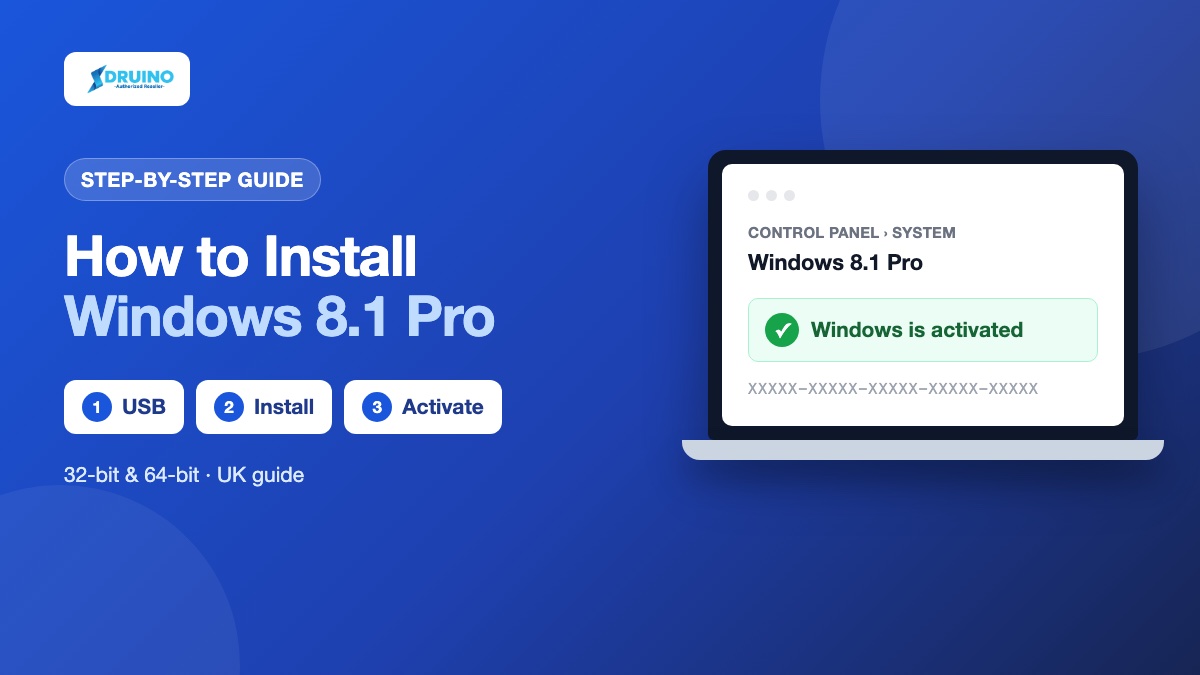
Quick answer: To install Windows 8.1 Pro, create a bootable USB drive from the Windows 8.1 installation file, start your PC from the USB, click Install now, enter your 25-character product key and choose Custom: Install Windows only. After setup, check activation in Control Panel › System. If online activation fails, press Windows + R and type slui 4 to activate by phone. Note: Microsoft ended support for Windows 8.1 on 10 January 2023, so use it for older PCs, legacy software or offline machines.
This UK guide shows you how to install Windows 8.1 Pro step by step, from preparing your PC and creating a bootable USB drive to activating Windows and installing drivers. It also covers common installation and activation errors.
Windows 8.1 Pro at a glance
| Question | Answer |
|---|---|
| Product | Microsoft Windows 8.1 Pro, 32-bit or 64-bit |
| Licence | One-time payment, 1 PC, no subscription |
| Microsoft support | Ended on 10 January 2023 (no more security updates) |
| Best for | Older PCs, legacy software, offline and fixed-purpose machines |
| Upgrade key for Windows 10 or 11? | No |
| Where to get help | Druino support |
Before you install Windows 8.1 Pro
System requirements
| Component | Minimum |
|---|---|
| Processor | 1 GHz or faster with PAE, NX and SSE2 support |
| Memory (RAM) | 1 GB (32-bit) or 2 GB (64-bit) |
| Storage | 16 GB (32-bit) or 20 GB (64-bit) |
| Graphics | DirectX 9 with WDDM driver |
| USB drive | 8 GB or more, to create the installation media |
32-bit or 64-bit?
Choose 64-bit if your PC has more than 4 GB of RAM or you want to use Hyper-V. Choose 32-bit only for very old PCs or software that needs it. The same Windows 8.1 Pro key works for both.
Checklist
- Back up your files. A clean installation erases the drive you install Windows on.
- Check drivers. Very recent PCs may not have Windows 8.1 drivers. Check your PC or motherboard maker’s website first.
- Keep your product key ready. Windows 8.1 setup asks for the key during installation.
- Find your installation file. Use the Windows 8.1 installation file (ISO) or installation media described in your Druino order email. If you don’t have one, contact us before you start.
Step 1: Create a bootable USB drive
- On a working Windows PC, insert an empty USB drive of 8 GB or more. Everything on it will be erased.
- Open a USB creation tool such as Rufus (free) and select your USB drive.
- Select your Windows 8.1 ISO file. Choose GPT / UEFI for most PCs made after 2012, or MBR / BIOS for older PCs.
- Click Start and wait until the USB drive is ready.
Step 2: Start your PC from the USB drive
- Insert the USB drive into the PC where you want to install Windows 8.1 Pro.
- Turn the PC on and press the boot menu key straight away. It is usually F12, F11, F8 or Esc, depending on your PC maker.
- Select your USB drive from the list. If it doesn’t appear, check the boot settings in the BIOS or UEFI setup.
Step 3: Install Windows 8.1 Pro
- Choose your language, time format and keyboard (for example English (United Kingdom)), then click Next and Install now.
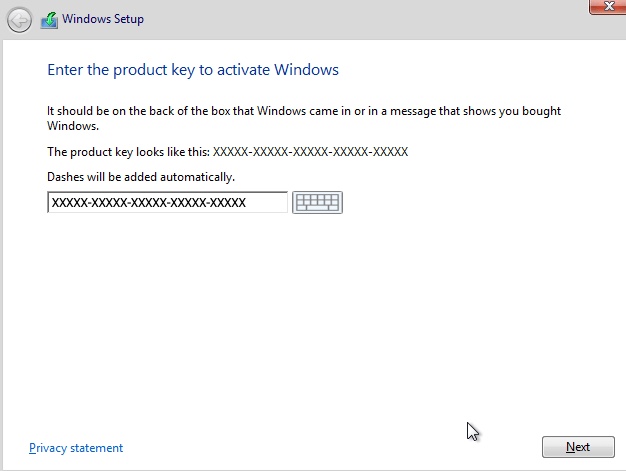
- Enter your 25-character Windows 8.1 Pro product key and click Next.
- Accept the licence terms and click Next.
- Choose Custom: Install Windows only (advanced).
- Select the drive or partition for Windows. To start fresh, delete the old partitions on that drive and select the unallocated space. Click Next.
- Wait while Windows installs. Your PC restarts several times. Remove the USB drive when the first setup screen appears.
Step 4: First-time setup
- Choose a colour and type a name for your PC.
- Choose Use express settings, or Customise to turn off options you don’t need.
- Sign in with a Microsoft account, or choose Create a new account › Sign in without a Microsoft account to use a local account. A local account is best for offline PCs.
- Wait a few minutes while Windows prepares your desktop.
Step 5: Activate and check Windows 8.1 Pro
- Connect to the internet. Windows 8.1 usually activates automatically with the key you entered during setup.
- Check it: open Control Panel › System and Security › System. At the bottom it should say Windows is activated, with the edition Windows 8.1 Pro.
- If it isn’t activated, click Activate Windows or go to PC settings › PC and devices › PC info and enter your key again.
- If online activation fails, press Windows + R, type slui 4, choose United Kingdom and follow the phone activation steps.
Step 6: Install drivers and protect your PC
- Drivers: download chipset, graphics, network and audio drivers for Windows 8.1 from your PC or motherboard maker’s website.
- Updates: run Windows Update once to install the last updates Microsoft released for Windows 8.1.
- Security: because Windows 8.1 no longer receives security updates, keep the PC offline or on a protected network, avoid everyday web browsing on it, and keep regular backups.
How to fix common Windows 8.1 installation and activation errors
| Problem | What to do |
|---|---|
| “The product key you entered doesn’t match any of the Windows images” | Your installation file doesn’t include Windows 8.1 Pro. Use a Windows 8.1 file that includes the Pro edition, or contact us. |
| “Windows cannot be installed to this disk” | The disk style doesn’t match the boot mode. Recreate the USB with GPT/UEFI or MBR/BIOS to match your PC, or delete all partitions on the drive. |
| The PC doesn’t start from the USB | Use the boot menu key, or turn on USB boot in the BIOS/UEFI settings. On some PCs you may need to turn on Legacy/CSM mode for MBR drives. |
| No internet or sound after installation | Install the network and audio drivers from your PC maker’s website, using another PC and a USB drive if needed. |
| Activation fails online | Check the date and time, then use phone activation: Windows + R, type slui 4. |
| Error 0xC004C003 or “key blocked” | Contact Druino support with your order number and a screenshot of the error. |
Frequently asked questions
How do I install Windows 8.1 Pro from USB?
Create a bootable USB drive from the Windows 8.1 ISO file, start your PC from the USB with the boot menu key, click Install now, enter your product key and choose Custom: Install Windows only.
Do I need a product key to install Windows 8.1 Pro?
Yes. Windows 8.1 setup asks for the 25-character product key during installation, before you choose where to install Windows.
How do I check that Windows 8.1 Pro is activated?
Open Control Panel › System and Security › System. At the bottom it should say Windows is activated, and the edition should be Windows 8.1 Pro.
How do I activate Windows 8.1 by phone?
Press Windows + R, type slui 4 and press Enter. Choose United Kingdom, call the number shown and follow the instructions to enter the confirmation ID.
Can I install Windows 8.1 without a Microsoft account?
Yes. During setup, choose Create a new account, then Sign in without a Microsoft account, to create a local account.
Will Windows 8.1 work on a new PC?
Often not fully. Recent processors and motherboards may not have Windows 8.1 drivers. Check your PC maker’s website before you install.
Is Windows 8.1 still supported?
No. Microsoft ended support on 10 January 2023. Windows 8.1 still installs and activates, but it no longer receives security updates.
Can I upgrade from Windows 8.1 to Windows 11 for free?
No. Microsoft no longer accepts Windows 8.1 keys to activate Windows 10 or Windows 11. You need a Windows 10 or Windows 11 licence.
Need help with your Druino order?
If you’re stuck at any step, our UK support team can help. Call +44 20 8040 4209 (Monday to Friday, 9am to 6pm UK time), email support@druino.co.uk or use our contact page. Never publish a product key or order details in a public comment.
Explore: Windows 8.1 Pro · Windows 11 Pro · Windows 10 IoT Enterprise LTSC 2021 · Microsoft licence key FAQ